---
title: "How to Fax From Android: App, Chrome or Gmail | SingleFax"
description: "Fax from Android with the SingleFax app, Chrome or Gmail. Scan with Google Drive or Samsung tools, check the packet and keep your delivery result."
canonical_url: "https://singlefax.com/blog/how-to-fax-from-android"
last_updated: 2026-10-27
meta:
"og:description": "Fax from Android with the SingleFax app, Chrome or Gmail. Scan with Google Drive or Samsung tools, check the packet and keep your delivery result."
"og:image": "https://singlefax.com/images/versioned/d9348ab91a49df3b/how-to-fax-from-android.jpg"
"og:image:alt": "How to Fax From Android: App, Chrome or Gmail"
"og:image:height": "800"
"og:image:type": image/jpeg
"og:image:width": "1200"
"og:title": "How to Fax From Android: App, Chrome or Gmail"
---
> Index of every page on this site: [llms.txt](https://singlefax.com/llms.txt)
[singlefax](https://singlefax.com/)
[Send & receive](https://singlefax.com/send-or-receive-fax) [For companies](https://singlefax.com/for-companies)Solutions [Pricing](https://singlefax.com/pricing) [Blog](https://singlefax.com/blog)
[Sign in](https://singlefax.com/login)
[All guides](https://singlefax.com/blog)
# How to Fax From Android
UpdatedOct 27, 2026 [Mircea Rilă](https://singlefax.com/authors/mircea-rila)
**To fax from Android, use the SingleFax Android app or upload your document in Chrome.** You can scan paper with your camera or Google Drive, enter the recipient's fax number, review the packet and complete checkout. Keep the final delivery result. Your phone needs internet access; the provider makes the fax call.
$0.99 covers up to 10 pages, pay only if delivered.
[Review a one-time fax quote](https://singlefax.com/send-or-receive-fax?type=send)
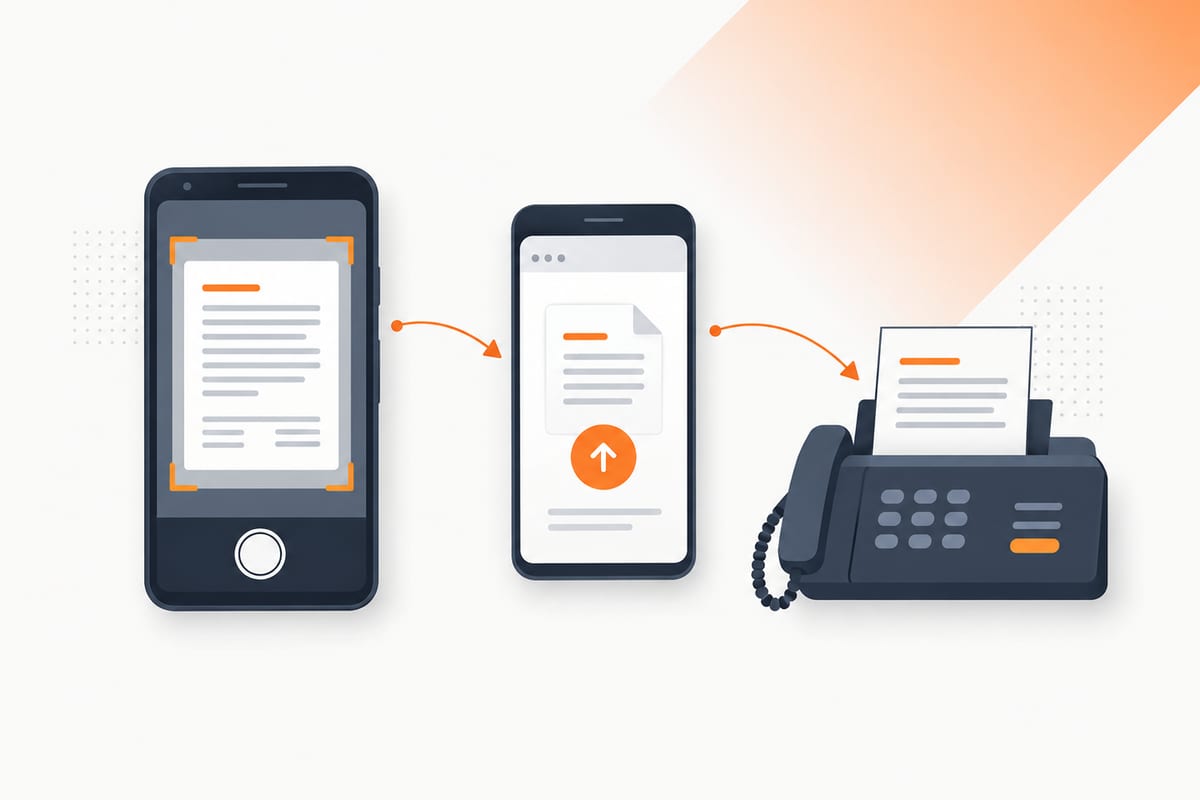
The [phone fax hub](https://singlefax.com/blog/send-fax-from-phone) compares phone workflows. For Android, [SingleFax: Scan & Fax is live on Google Play](https://play.google.com/store/apps/details?id=com.monocube.singlefax). Browser sending also works without installing a fax app. Prefer to watch first? See the [Android fax video walkthrough](https://singlefax.com/videos/fax-from-android).
> **Need to send an ordinary document?** [Review a one-time fax quote](https://singlefax.com/send-or-receive-fax?type=send). $0.99 covers up to 10 pages, pay only if delivered.
## Choose the route that fits your document
| Route | What you need | Best fit |
| --- | --- | --- |
| SingleFax Android app | App and internet access | Camera scanning and repeat mobile use |
| Chrome browser | Actual PDF or image file | One packet without app installation |
| Gmail gateway | Actual attachments and gateway checkout | Documents already prepared for email |
These routes send an ordinary fax to the recipient's fax number. Sending a photo in a text message or sharing a Drive link with the recipient is a different delivery method.
## Method 1: SingleFax Android app
Install [SingleFax: Scan & Fax](https://play.google.com/store/apps/details?id=com.monocube.singlefax) from Google Play. Check the developer, **Monocube LLC**, and package, **com.monocube.singlefax**, so you install the intended app. The [mobile app page](https://singlefax.com/mobile-app) links the current Android release.
Open the sending flow and choose **Scan** for paper or attach an existing document. Allow camera access if you want to scan. Inspect the captured pages, crop away the desk and retake anything with missing corners, glare or unreadable text.
Add the verified destination number and appropriate sender details. If you use a cover, check its information and whether you are generating one or uploading one. Review the complete packet before choosing **Send fax** and following checkout. The displayed quote and destination terms govern payment timing.
Do not assume every device has identical scan enhancement. The app has a raw-camera fallback when crop and enhancement are unavailable; inspect the resulting image rather than assuming it has been corrected. A clear direct PDF export is often preferable when the source document is already digital.
The app can be used for one-time sending without a monthly fax plan. Account features support continuing use, but installing the app does not turn paid transmission into a free fax allowance.
## Method 2: Chrome and a PDF
*Phone browser walkthrough · 46 seconds [Watch with chapters and transcript](https://singlefax.com/videos/fax-from-phone) [Watch on YouTube](https://www.youtube.com/watch?v=2vtJAFEsA38)*
### 1. Prepare the file
Use the original PDF where possible. If the form is on paper, scan it and save a complete packet. Read the scan at normal size, check signatures and confirm every required page is present. Rotate sideways pages and remove accidental blank scans.
If the file is in Drive or another cloud app, make sure you can select the actual file. A sharing link in a message is not a document upload.
### 2. Open the send page
Open [SingleFax in Chrome](https://singlefax.com/send-or-receive-fax?type=send) and choose Send. A mobile data connection or Wi-Fi supplies the upload connection; you do not need a separate telephone line or fax modem.
Keep the page open while you complete the upload and checkout. If you move between your scanner and Chrome, return to the draft and inspect what is attached before proceeding.
### 3. Upload and address
Select the actual PDF or image files from your phone's file picker. Enter the recipient's direct fax number with country code and your email for status messages. Verify the number against the official recipient's source or current letter.
An office's voice extension does not substitute for a direct fax line. When unsure, ask the receiving department which number handles your kind of document.
### 4. Review and check out
Check order, readability, signatures and the cover. Make sure old template values are gone and the cover count agrees with the full packet. The [free cover tool](https://singlefax.com/fax-cover-sheet) can create a routing page if the recipient needs one.
Review the final destination quote and payment terms, then complete checkout. A payment confirmation or accepted upload is not the same as a completed fax.
### 5. Keep the final result
Wait for the final transmission status. Save the confirmation with a copy of the exact document set. If the office needs to process a request, transmission success does not prove approval, review or timely filing under its rules.
Avoid starting a second send while the first is still processing. Check the existing status first so you do not create duplicate packets or separate charges.
## Scan paper with Google Drive
[Google's current Android scan instructions](https://support.google.com/drive/answer/3145835?co=GENIE.Platform%3DAndroid&hl=en) use **Camera** at the bottom right of the Drive app. Capture the page, inspect the scan and use the available crop, rotation and cleanup controls. Add the remaining pages and choose **PDF** when saving the multipage document.
Use even light and a flat surface. Hold the phone parallel to the page so numbers and signatures are not distorted. After saving, open the PDF and confirm the entire packet before sending. Google Drive stores the scan; it does not transmit a fax.
For documents already saved there, see [faxing from Google Drive](https://singlefax.com/blog/send-fax-from-google-drive). You can download the file for browser upload without changing it to a public sharing link.
## Method 3: Gmail to the fax gateway
For ordinary documents, compose a message to **[send@fax.delivery](mailto:send@fax.delivery)**. Put the destination fax number with country code in the subject and attach the actual files. Keep the set within **ten files totaling ten MB**, even if Gmail itself permits larger messages.
Open the gateway reply and complete its review and payment link. Sending the email alone does not finish the fax order, including when you have account credits. Save the final fax result, rather than treating Gmail's Sent folder as proof of delivery.
The [Gmail fax guide](https://singlefax.com/blog/how-to-fax-from-gmail) covers attachments, cloud links and troubleshooting. An ordinary email gateway is not the protected HIPAA workflow. For an organization's PHI, use the [HIPAA web flow](https://singlefax.com/hipaa-fax) and its BAA requirements.
## Samsung Galaxy scanning tips
Samsung's [current Galaxy scan guide](https://www.samsung.com/us/support/answer/ANS10003696/) describes pointing Camera at a document, choosing **Scan** when it appears and saving the result to Gallery. Available controls depend on the device and software; do not assume every Samsung camera creates a multipage PDF directly.
Samsung Notes can work with PDFs. Its [export guide](https://www.samsung.com/ph/support/mobile-devices/how-to-import-and-export-pdfs-with-samsung-notes/) describes **More options**, then **Share** or **Save as file**, with PDF among the formats. Inspect the exported file before uploading it. Renaming a JPEG's extension to .pdf does not convert the file.
If Camera does not offer the scan control, use the SingleFax app's scan flow or Google Drive instead. Whichever tool you choose, the final page's readability matters more than an automatic enhancement label.
## Receive a fax on Android
You need an active receiving number for replies. SingleFax's [free 24-hour US number](https://singlefax.com/free-fax-number) requires verified email, allows one active claim and up to three claims in a rolling 30 days, with **25 inbound pages across those claims**. Extra incoming faxes may be held for paid viewing. This ordinary free product is not HIPAA receiving.
For a longer reply window, the [$4.99 30-day number](https://singlefax.com/send-or-receive-fax?type=receive) includes the first received fax; additional received faxes are paid. Continuing Standard and Business plans pool sending and receiving pages. Check duration, number continuity and allowances before giving the number to an office that may reply later.
See [what a fax number is](https://singlefax.com/blog/what-is-a-fax-number) if you are deciding whether you need your own. A sender normally needs the recipient's fax number, not a rented return number for every outgoing fax.
## Costs and common problems
SingleFax ordinary sending starts at **$0.99 for up to ten document pages**, with **$0 if delivery fails**. Extra ordinary document pages cost **$0.08 each**, up to 1000 total pages per send.
If upload fails, check that you selected the actual supported file, that it is not password-protected and that the phone has a stable connection. If the receiver is busy or the transmission fails, inspect the existing result and number before starting a new order. If the document is unreadable, improve the scan before retrying.
Android menu documentation and product terms checked **8 October 2026**; SingleFax store availability updated **27 October 2026**. Both the [Android app](https://play.google.com/store/apps/details?id=com.monocube.singlefax) and [iOS app](https://apps.apple.com/app/id6810689541) are live. Downloads are free; fax sends and numbers are paid. The [iPhone guide](https://singlefax.com/blog/how-to-fax-from-iphone) covers the app, browser and email routes.
## Frequently asked questions
Can I fax from an Android phone?
Yes. Use an Android fax app, upload a document through a browser or use a supported email-to-fax gateway. The service places the fax call; your phone needs internet access rather than a landline.
Is the SingleFax Android app live?
Yes. SingleFax Scan & Fax is available on Google Play under com.monocube.singlefax. It supports camera scans, document uploads and fax sending, with optional receiving numbers.
Can I fax from Android without installing a fax app?
Yes. Prepare the document, open SingleFax in Chrome, upload the actual file and enter the destination. Review the packet, quote and payment terms before checkout, then keep the final transmission result.
How do I scan a document with Google Drive?
Google's current Android instructions use the Camera control at the bottom right of Drive. Capture the document, adjust the scan, add pages as needed and save it as PDF. Open the saved file to inspect it before uploading.
Can I fax from a Samsung Galaxy phone?
Yes. Use the app or browser. Supported Galaxy devices can also scan through Camera and save to Gallery; Samsung Notes can export PDF. Screens and commands vary with device model and software version.
Can Gmail send my Android document as a fax?
Gmail needs a fax gateway. For ordinary SingleFax sending, address send@fax.delivery, put the destination number with country code in the subject and attach actual files within ten files and ten MB. Complete the gateway reply's checkout step.
How much does an Android fax cost?
SingleFax starts at $0.99 for up to ten document pages, with $0 on failed delivery. Creating a scan is separate from sending it.
Can I receive faxes on Android?
Yes, with an active receiving number. SingleFax offers a free 24-hour US number after email verification, subject to one active claim, three claims per rolling 30 days and 25 inbound pages across those claims. Longer-duration and continuing numbers are paid options.
## Sources
- [Google Play: SingleFax Scan & Fax](https://play.google.com/store/apps/details?id=com.monocube.singlefax)
- [Google: Scan documents with Drive on Android](https://support.google.com/drive/answer/3145835?co=GENIE.Platform%3DAndroid&hl=en)
- [Samsung: Scan and edit documents on Galaxy devices](https://www.samsung.com/us/support/answer/ANS10003696/)
- [Samsung: Import and export PDFs with Notes](https://www.samsung.com/ph/support/mobile-devices/how-to-import-and-export-pdfs-with-samsung-notes/)
- [SingleFax: Email gateway and file limits](https://singlefax.com/email-to-fax)
- [SingleFax: Sending and receiving prices](https://singlefax.com/pricing)
## Send a fax
[Send a fax](https://singlefax.com/send-or-receive-fax?type=send) [Get a US or Canadian number](https://singlefax.com/send-or-receive-fax?type=receive)
## Related guides
[How to Fill Out Form SS-4 and Apply for an EIN by Fax (2026 Walkthrough)
Line-by-line Form SS-4 walkthrough for an EIN by fax: what to write for foreign owners, common mistakes, the return fax and what happens after you send.UpdatedOct 27, 2026](https://singlefax.com/blog/apply-for-ein-by-fax-ss4) [Best Fax Apps for iPhone & Android: 2026 Costs
Compare six cell phone fax app options by free limits, subscriptions, page credits and BAA support. Includes a browser option for one fax without an app subscription.UpdatedOct 27, 2026](https://singlefax.com/blog/best-fax-apps) [Best Free Fax Numbers Online (2026): Receive Faxes Free
Free fax numbers for receiving in 2026: 24-hour numbers, toll-free options, trials and public queues. How long each lasts, page limits and the catch.UpdatedOct 24, 2026](https://singlefax.com/blog/best-free-fax-numbers-online-2026)
[singlefax](https://singlefax.com/)
Send once. Receive when you need to.
[](https://apps.apple.com/app/id6810689541) [](https://play.google.com/store/apps/details?id=com.monocube.singlefax)
[Add to Chrome](https://chromewebstore.google.com/detail/singlefax-fax-a-document/ojpmpilgkmjcfebhpkdmmjlkbcifkkej) [SingleFax on LinkedIn](https://www.linkedin.com/company/singlefax/) [SingleFax on Facebook](https://www.facebook.com/singlefax) [SingleFax on Instagram](https://www.instagram.com/singlefax.app) [SingleFax on Threads](https://www.threads.com/@singlefax.app) [SingleFax on YouTube](https://www.youtube.com/@singlefax) [SingleFax on GitHub](https://github.com/SingleFax)
## Fax services
- [Send a fax](https://singlefax.com/send-or-receive-fax?type=send)
- [Receive faxes](https://singlefax.com/send-or-receive-fax?type=receive)
- [Free 24-hour number](https://singlefax.com/free-fax-number)
- [Lifetime number](https://singlefax.com/lifetime-fax-number)
- [Number porting](https://singlefax.com/number-porting)
- [Test fax](https://singlefax.com/test-fax-number)
- [Company plans](https://singlefax.com/for-companies)
- [HIPAA Secure](https://singlefax.com/hipaa-fax)
- [Online fax](https://singlefax.com/online-fax)
- [Email to fax](https://singlefax.com/email-to-fax)
- [WhatsApp to fax](https://singlefax.com/whatsapp-to-fax)
## IRS filings
- [All IRS filings](https://singlefax.com/irs-filings)
- [EIN · Form SS-4](https://singlefax.com/get-ein)
- [Form 5472](https://singlefax.com/file-5472)
- [Form 7004](https://singlefax.com/file-7004)
- [Form 2553](https://singlefax.com/file-2553)
- [Form 2848](https://singlefax.com/file-2848)
- [Form 4506-T](https://singlefax.com/file-4506-t)
- [Form 8821](https://singlefax.com/file-8821)
- [Form 8802](https://singlefax.com/file-8802)
- [Form 8655](https://singlefax.com/file-8655)
- [Form 3911](https://singlefax.com/file-3911)
- [Form 8233](https://singlefax.com/file-8233)
- [NY POA-1](https://singlefax.com/file-ny-poa-1)
## Tools & resources
- [Free fax tools](https://singlefax.com/free-fax-tools)
- [Fax services near me](https://singlefax.com/fax-near-me)
- [Prepare a fax PDF](https://singlefax.com/prepare-fax)
- [Printable test page](https://singlefax.com/fax-test-page)
- [Cover sheets](https://singlefax.com/fax-cover-sheet)
- [Mobile app](https://singlefax.com/mobile-app)
- [Chrome extension](https://singlefax.com/chrome-extension)
- [Developers](https://singlefax.com/developers)
- [AI fax agents](https://singlefax.com/agents)
- [Versioning](https://singlefax.com/versioning)
- [Congress fax directory](https://singlefax.com/fax/congress)
- [Senate fax directory](https://singlefax.com/fax/senate)
- [Governor fax directory](https://singlefax.com/fax/governors)
## SingleFax
- [Pricing](https://singlefax.com/pricing)
- [Blog](https://singlefax.com/blog)
- [About](https://singlefax.com/about)
- [Contact](https://singlefax.com/contact)
- [Support](https://singlefax.com/support)
© 2026 SingleFax
[Privacy](https://singlefax.com/privacy-policy) [Terms](https://singlefax.com/terms-of-service) [Refunds](https://singlefax.com/refund-policy) [Report abuse](https://singlefax.com/abuse)
```json
{"@context":"https://schema.org","@type":"HowTo","name":"Send a fax from Android in Chrome","video":{"@id":"https://singlefax.com/videos/fax-from-phone#video-2vtJAFEsA38"},"tool":[{"@type":"HowToTool","name":"Android phone with Chrome and internet access"}],"step":[{"@type":"HowToStep","name":"Prepare the file","text":"Save the complete document as PDF or scan the paper, then inspect every page."},{"@type":"HowToStep","name":"Open the send page","text":"Open SingleFax in Chrome and choose Send."},{"@type":"HowToStep","name":"Upload and address","text":"Upload the actual file, enter the verified destination fax number and provide your email."},{"@type":"HowToStep","name":"Review and check out","text":"Check page order, signatures, cover and destination, then review the quote and payment terms before checkout."},{"@type":"HowToStep","name":"Keep the final result","text":"Wait for the final transmission result and save the confirmation with the sent packet."}]}
```
```json
{"@context":"https://schema.org","@graph":[{"@id":"https://singlefax.com/#website","@type":"WebSite","description":"SingleFax lets you send and receive one time faxes from your phone or computer. No signup & account registration required.","inLanguage":"en","name":"SingleFax - Send & Receive one time faxes","url":"https://singlefax.com/","publisher":{"@id":"https://singlefax.com/#/schema/organization/1"},"workTranslation":[{"@id":"https://singlefax.com/de#website"},{"@id":"https://singlefax.com/fr#website"},{"@id":"https://singlefax.com/es#website"},{"@id":"https://singlefax.com/it#website"},{"@id":"https://singlefax.com/zh-tw#website"},{"@id":"https://singlefax.com/pt-br#website"},{"@id":"https://singlefax.com/tr#website"},{"@id":"https://singlefax.com/ko#website"},{"@id":"https://singlefax.com/ja#website"},{"@id":"https://singlefax.com/ar#website"}]},{"@id":"https://singlefax.com/blog/how-to-fax-from-android#webpage","dateModified":"2026-10-27","datePublished":"2026-10-30","description":"Fax from Android with the SingleFax app, Chrome or Gmail. Scan with Google Drive or Samsung tools, check the packet and keep your delivery result.","name":"How to Fax From Android: App, Chrome or Gmail","url":"https://singlefax.com/blog/how-to-fax-from-android","@type":["WebPage","FAQPage"],"breadcrumb":{"@id":"https://singlefax.com/blog/how-to-fax-from-android#breadcrumb"},"isPartOf":{"@id":"https://singlefax.com/#website"},"mainEntity":[{"@id":"https://singlefax.com/blog/how-to-fax-from-android#/schema/question/1"},{"@id":"https://singlefax.com/blog/how-to-fax-from-android#/schema/question/2"},{"@id":"https://singlefax.com/blog/how-to-fax-from-android#/schema/question/3"},{"@id":"https://singlefax.com/blog/how-to-fax-from-android#/schema/question/4"},{"@id":"https://singlefax.com/blog/how-to-fax-from-android#/schema/question/5"},{"@id":"https://singlefax.com/blog/how-to-fax-from-android#/schema/question/6"},{"@id":"https://singlefax.com/blog/how-to-fax-from-android#/schema/question/7"},{"@id":"https://singlefax.com/blog/how-to-fax-from-android#/schema/question/8"}],"potentialAction":[{"@type":"ReadAction","target":["https://singlefax.com/blog/how-to-fax-from-android"]}]},{"@id":"https://singlefax.com/blog/how-to-fax-from-android#article","dateModified":"2026-10-27","datePublished":"2026-10-30","description":"Fax from Android with the SingleFax app, Chrome or Gmail. Scan with Google Drive or Samsung tools, check the packet and keep your delivery result.","headline":"How to Fax From Android: App, Chrome or Gmail","inLanguage":"en","thumbnailUrl":"https://singlefax.com/images/versioned/d9348ab91a49df3b/how-to-fax-from-android.jpg","@type":["Article","BlogPosting"],"author":{"@id":"https://singlefax.com/authors/mircea-rila#person"},"image":{"@id":"https://singlefax.com/#/schema/image/1"},"isPartOf":{"@id":"https://singlefax.com/blog/how-to-fax-from-android#webpage"},"mainEntityOfPage":{"@id":"https://singlefax.com/blog/how-to-fax-from-android#webpage"},"publisher":{"@id":"https://singlefax.com/#/schema/organization/1"},"speakable":{"@type":"SpeakableSpecification","cssSelector":["[data-speakable-lead]","[data-speakable-faq] [data-slot=\"body\"]"]}},{"@id":"https://singlefax.com/blog/how-to-fax-from-android#breadcrumb","@type":"BreadcrumbList","itemListElement":[{"@type":"ListItem","name":"Guides","item":"https://singlefax.com/blog","position":1},{"@type":"ListItem","name":"How to Fax From Android: App, Chrome or Gmail","item":"https://singlefax.com/blog/how-to-fax-from-android","position":2}]},{"@id":"https://singlefax.com/blog/how-to-fax-from-android#/schema/question/1","@type":"Question","inLanguage":"en","name":"Can I fax from an Android phone?","acceptedAnswer":{"@type":"Answer","text":"Yes. Use an Android fax app, upload a document through a browser or use a supported email-to-fax gateway. The service places the fax call; your phone needs internet access rather than a landline."}},{"@id":"https://singlefax.com/blog/how-to-fax-from-android#/schema/question/2","@type":"Question","inLanguage":"en","name":"Is the SingleFax Android app live?","acceptedAnswer":{"@type":"Answer","text":"Yes. SingleFax Scan & Fax is available on Google Play under com.monocube.singlefax. It supports camera scans, document uploads and fax sending, with optional receiving numbers."}},{"@id":"https://singlefax.com/blog/how-to-fax-from-android#/schema/question/3","@type":"Question","inLanguage":"en","name":"Can I fax from Android without installing a fax app?","acceptedAnswer":{"@type":"Answer","text":"Yes. Prepare the document, open SingleFax in Chrome, upload the actual file and enter the destination. Review the packet, quote and payment terms before checkout, then keep the final transmission result."}},{"@id":"https://singlefax.com/blog/how-to-fax-from-android#/schema/question/4","@type":"Question","inLanguage":"en","name":"How do I scan a document with Google Drive?","acceptedAnswer":{"@type":"Answer","text":"Google's current Android instructions use the Camera control at the bottom right of Drive. Capture the document, adjust the scan, add pages as needed and save it as PDF. Open the saved file to inspect it before uploading."}},{"@id":"https://singlefax.com/blog/how-to-fax-from-android#/schema/question/5","@type":"Question","inLanguage":"en","name":"Can I fax from a Samsung Galaxy phone?","acceptedAnswer":{"@type":"Answer","text":"Yes. Use the app or browser. Supported Galaxy devices can also scan through Camera and save to Gallery; Samsung Notes can export PDF. Screens and commands vary with device model and software version."}},{"@id":"https://singlefax.com/blog/how-to-fax-from-android#/schema/question/6","@type":"Question","inLanguage":"en","name":"Can Gmail send my Android document as a fax?","acceptedAnswer":{"@type":"Answer","text":"Gmail needs a fax gateway. For ordinary SingleFax sending, address send@fax.delivery, put the destination number with country code in the subject and attach actual files within ten files and ten MB. Complete the gateway reply's checkout step."}},{"@id":"https://singlefax.com/blog/how-to-fax-from-android#/schema/question/7","@type":"Question","inLanguage":"en","name":"How much does an Android fax cost?","acceptedAnswer":{"@type":"Answer","text":"SingleFax starts at $0.99 for up to ten document pages, with $0 on failed delivery. Creating a scan is separate from sending it."}},{"@id":"https://singlefax.com/blog/how-to-fax-from-android#/schema/question/8","@type":"Question","inLanguage":"en","name":"Can I receive faxes on Android?","acceptedAnswer":{"@type":"Answer","text":"Yes, with an active receiving number. SingleFax offers a free 24-hour US number after email verification, subject to one active claim, three claims per rolling 30 days and 25 inbound pages across those claims. Longer-duration and continuing numbers are paid options."}},{"@id":"https://singlefax.com/authors/mircea-rila#person","@type":"Person","jobTitle":"Founder & CEO, SingleFax","name":"Mircea Rilă","url":"https://singlefax.com/authors/mircea-rila","image":{"@id":"https://singlefax.com/#/schema/image/2"},"sameAs":["https://www.linkedin.com/in/mircearila/","https://x.com/zawasp"],"worksFor":{"@type":"Organization","name":"SingleFax","legalName":"Monocube LLC","url":"https://singlefax.com"}},{"@id":"https://singlefax.com/#/schema/organization/1","@type":"Organization","logo":"https://singlefax.com/android-chrome-512x512.png","name":"SingleFax","url":"https://singlefax.com/"},{"@id":"https://singlefax.com/#/schema/image/1","@type":"ImageObject","contentUrl":"https://singlefax.com/images/versioned/d9348ab91a49df3b/how-to-fax-from-android.jpg","inLanguage":"en","url":"https://singlefax.com/images/versioned/d9348ab91a49df3b/how-to-fax-from-android.jpg"},{"@id":"https://singlefax.com/#/schema/image/2","@type":"ImageObject","contentUrl":"https://singlefax.com/images/authors/mircea-rila.jpg","inLanguage":"en","url":"https://singlefax.com/images/authors/mircea-rila.jpg"}]}
```