---
title: "How to Fax From iPhone: App or Safari, From $0.99 | SingleFax"
description: "Fax with the SingleFax iPhone app or use Safari, Mail or Gmail. Free app download; sending starts at $0.99 for up to 10 pages, pay only if delivered."
canonical_url: "https://singlefax.com/blog/how-to-fax-from-iphone"
last_updated: 2026-10-27
meta:
"og:description": "Fax with the SingleFax iPhone app or use Safari, Mail or Gmail. Free app download; sending starts at $0.99 for up to 10 pages, pay only if delivered."
"og:image": "https://singlefax.com/images/versioned/b1631ddf3bcaaafc/how-to-fax-from-iphone.jpg"
"og:image:alt": "How to Fax From iPhone: App or Safari, From $0.99"
"og:image:height": "800"
"og:image:type": image/jpeg
"og:image:width": "1200"
"og:title": "How to Fax From iPhone: App or Safari, From $0.99"
---
> Index of every page on this site: [llms.txt](https://singlefax.com/llms.txt)
[singlefax](https://singlefax.com/)
[Send & receive](https://singlefax.com/send-or-receive-fax) [For companies](https://singlefax.com/for-companies)Solutions [Pricing](https://singlefax.com/pricing) [Blog](https://singlefax.com/blog)
[Sign in](https://singlefax.com/login)
[All guides](https://singlefax.com/blog)
# How to Fax From iPhone: App or Browser
UpdatedOct 27, 2026 [Mircea Rilă](https://singlefax.com/authors/mircea-rila)
**To fax from an iPhone, use SingleFax: Scan & Fax from the App Store or upload a scan in Safari.** Scan or select your document, enter the verified fax number, review the quote and complete checkout. The app download is free; fax sends and numbers are paid. No fax machine or landline is needed.
No account or subscription. Pay only if delivered.
[Send a fax now — $0.99 for up to 10 pages](https://singlefax.com/send-or-receive-fax?type=send)
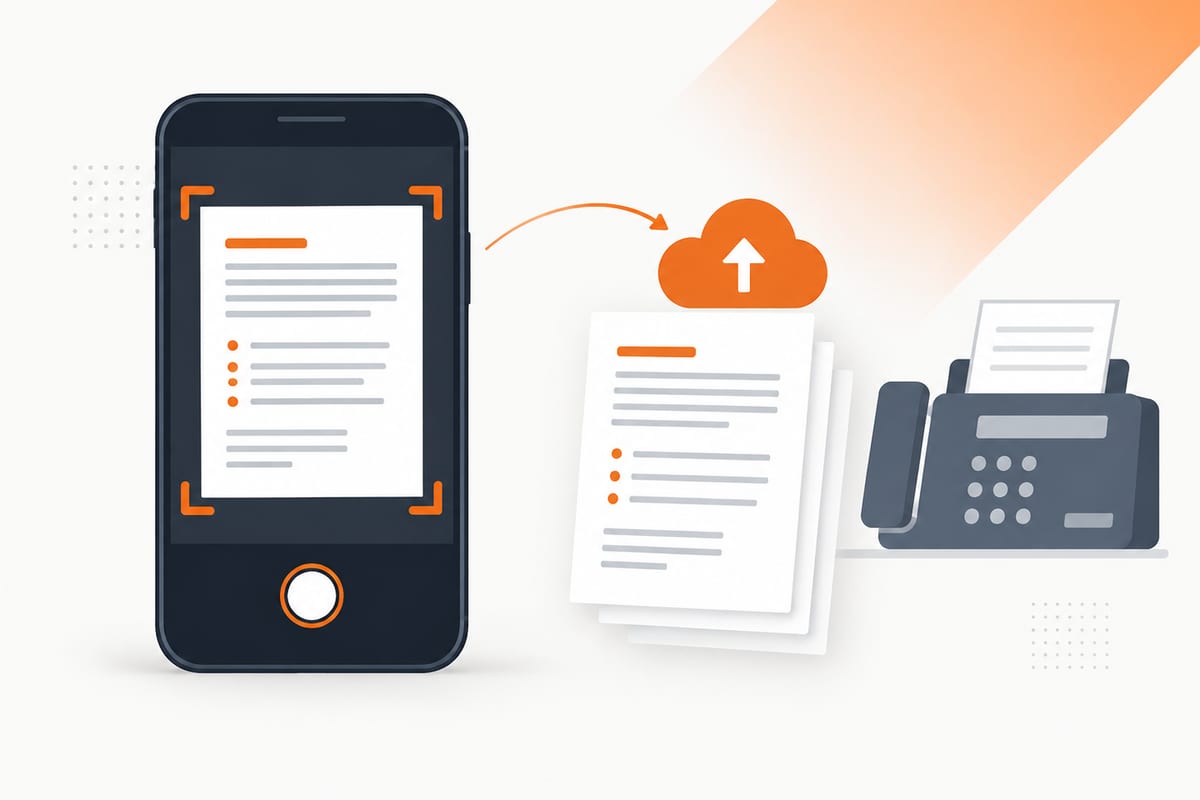
Yes, you can fax from an iPhone with [SingleFax: Scan & Fax](https://apps.apple.com/app/id6810689541) or through Safari. The app is free to download; sending starts at $0.99 for up to 10 document pages, with $0 if delivery fails.
For other phone methods, use our [send a fax from your phone](https://singlefax.com/blog/send-fax-from-phone) guide.
[Send a fax from your iPhone](https://singlefax.com/send-or-receive-fax?type=send). Sending starts at **$0.99 for up to ten document pages, with $0 if delivery fails**. These instructions were checked against current Apple documentation on **8 October 2026**.
## Can you fax from an iPhone?
Yes. Your iPhone supplies the document and internet connection, while a fax provider supplies the telephone connection to the recipient. The recipient can use an ordinary fax machine or an online receiving number. They do not need an iPhone or a SingleFax account.
Scanning and faxing are separate steps. Notes and Files turn paper into a digital document; they do not transmit it to a fax number. Saving a scan, sending an email or completing payment also does not establish successful fax delivery. Keep the final transmission result.
SingleFax: Scan & Fax **1.6.1 is live on the [App Store](https://apps.apple.com/app/id6810689541)**, released **27 October 2026**. It requires **iOS 16.4 or later** on iPhone, iPad or iPod touch. The listing is in English, by **Monocube LLC**, in **Business**. Downloading is free; fax sends and numbers are paid. Safari and email remain available if you prefer not to install an app.
| Method | What you use | Cost and terms | Best fit |
| --- | --- | --- | --- |
| Safari upload | Browser and saved document | From $0.99; $0 on failure | One fax with a packet review |
| Mail or Gmail | Email with actual attachments | Destination quote and payment link | A file already in your mailbox |
| WhatsApp gateway | WhatsApp and a document or photo | Quote and payment link in chat | An ordinary document already in chat |
| [SingleFax iOS app](https://apps.apple.com/app/id6810689541) | Free app download | Paid sends and numbers; review the quote | Camera scanning and an app inbox |
| Other App Store fax apps | Installed app and provider account | Free-tier, credit or subscription terms vary | Regular faxing in an app inbox |
On Android? Use the [Android guide](https://singlefax.com/blog/how-to-fax-from-android) or compare methods in the [phone hub](https://singlefax.com/blog/send-fax-from-phone).
## Use the SingleFax iPhone app
Download the app from the App Store, open **Send**, enter the recipient, and scan pages with the camera or attach a saved PDF or photo. Review the packet, optional cover and destination quote before payment. Use **Inbox** for sent and received faxes, **Numbers** for your fax lines and **Account** for account settings. See [mobile app details](https://singlefax.com/mobile-app) and [pricing](https://singlefax.com/pricing).
## What you need
Have the complete document, the recipient's verified direct fax number, an internet connection and an email address you can check for the result. If you are starting with paper, allow a few minutes to scan and review all pages.
Verify the fax number against the recipient's official website, current form instructions or letter. A telephone number for its switchboard may not accept faxes. If a department supplies an extension, ask for its direct fax line. Use the current form-specific guide for an [IRS fax](https://singlefax.com/blog/irs-fax-numbers-2026).
Sign the document where required before uploading. A cover sheet helps routing but does not replace missing application pages or signatures. If you expect a reply by fax, arrange your receiving number first and include it where the form or recipient requests it.
## Method 1: fax from Safari without an app
*Phone browser walkthrough · 46 seconds [Watch with chapters and transcript](https://singlefax.com/videos/fax-from-phone) [Watch on YouTube](https://www.youtube.com/watch?v=2vtJAFEsA38)*
### 1. Scan the document in Notes or Files
In **Notes**, create or open a note. Tap the **Attachment** button, then **Scan Documents**. Older iOS releases may show a camera control instead. Apple's current [scan guide](https://support.apple.com/en-us/108963) also describes a Scan command in the note's More menu.
Capture each page with all corners visible. In manual capture, adjust the corners and use **Keep Scan**. Add the remaining pages, then tap **Done**. Export or save the completed scan to Files so it is easy to select in Safari.
In **Files**, use **More → Scan Documents**, capture the pages, finish with **Done**, choose a location and tap **Save**. This is convenient when you want a PDF directly in a folder, rather than inside a note.
Open the saved PDF before continuing. Check that the last page is included, pages face the same direction, text is readable and signatures are not cropped. You can also use an existing PDF or Word document without scanning it again.
### 2. Open the send page and upload
Open the [SingleFax send page](https://singlefax.com/send-or-receive-fax?type=send) in Safari and choose **Send** if needed. Use **Upload documents** to select the file from Files or a supported image from your photo library.
HEIC photos are supported, but a combined PDF is easier to inspect for a multi-page packet. Wait while the documents upload and convert. A cloud sharing URL or screenshot of a document thumbnail is not the full document.
If a file lives in iCloud Drive, make sure it is available to open on the phone. A weak connection can delay downloading a cloud-only file before uploading it. Use a stable connection and keep the page open while preparation finishes.
### 3. Enter the number and result email
Enter the verified recipient fax number. Choose the destination country or paste its international number. For a US destination, enter the ten-digit number with its area code; the country selection identifies the US route.
Do not add an office outside-line prefix or an extension. Those do not identify a separate online fax destination. For an international number, use the country code and the recipient's published international format, rather than guessing which local leading digits to retain.
Enter the email address where you will receive the final result. Check it for typing errors. It is useful to have that mailbox open on the same phone, especially when the fax is time-sensitive.
### 4. Add a cover only when useful
Use a brief cover for a recipient department, callback details and a reference. Keep sensitive identifiers out of the cover when they are not needed. Our [free cover sheet generator](https://singlefax.com/fax-cover-sheet) also provides downloadable templates.
SingleFax excludes a **cover generated by its web composer** from billed document pages. A cover already merged into your uploaded PDF counts as part of that document. Avoid adding a second cover when the packet already contains one.
For paper submissions, count the actual transmitted pages according to the recipient's convention. If its cover asks for pages including the cover, include it in that count even when it is excluded from a provider's billing calculation.
### 5. Review the quote, then pay and send
Check the destination, converted pages and cover before checkout. Sending starts at **$0.99 for up to ten document pages**, with additional document pages about **$0.08 each** and **$0 on failed delivery**. Review the final quote for longer packets.
Complete checkout to begin transmission. Keep enough time for a busy line or recipient problem rather than relying on a fixed delivery deadline. A pending card authorization may remain visible until your bank releases it after a failed eligible fax.
### 6. Save the delivery confirmation
Wait for the final result email. A payment receipt or an upload screen is not the delivery confirmation. Keep the successful transmission record with the document you sent.
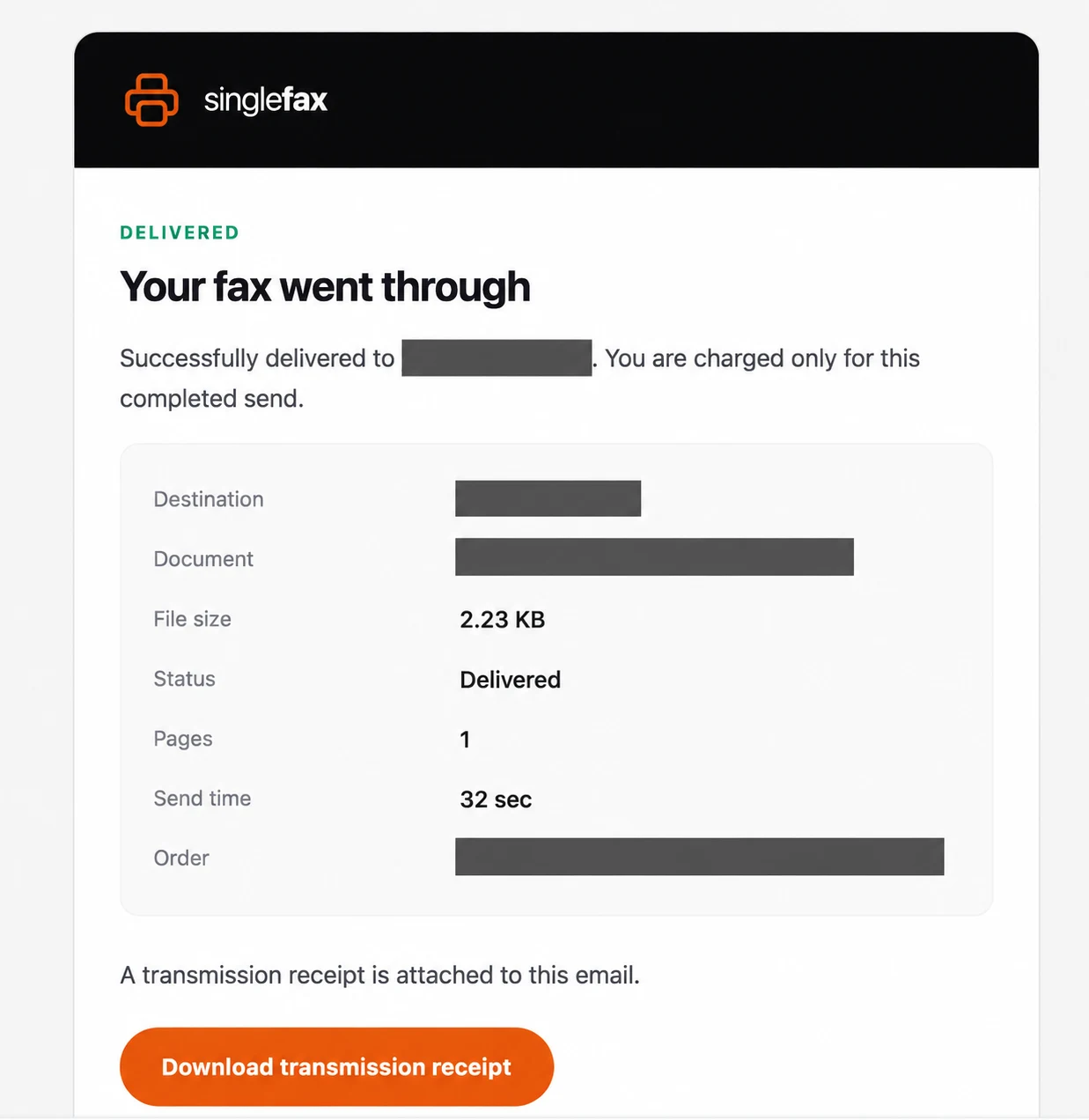
*SingleFax delivery-result email, supplied 8 October 2026. The destination number, document name and order ID are redacted. Check the final Delivered status and save the transmission receipt; delivery does not establish the recipient’s approval.*
If the recipient is processing an application, follow up using its stated procedure. Successful transmission does not mean approval, that the packet was complete, or that the assigned person has read it. For example, an IRS fax result and an IRS acceptance notice are different records.
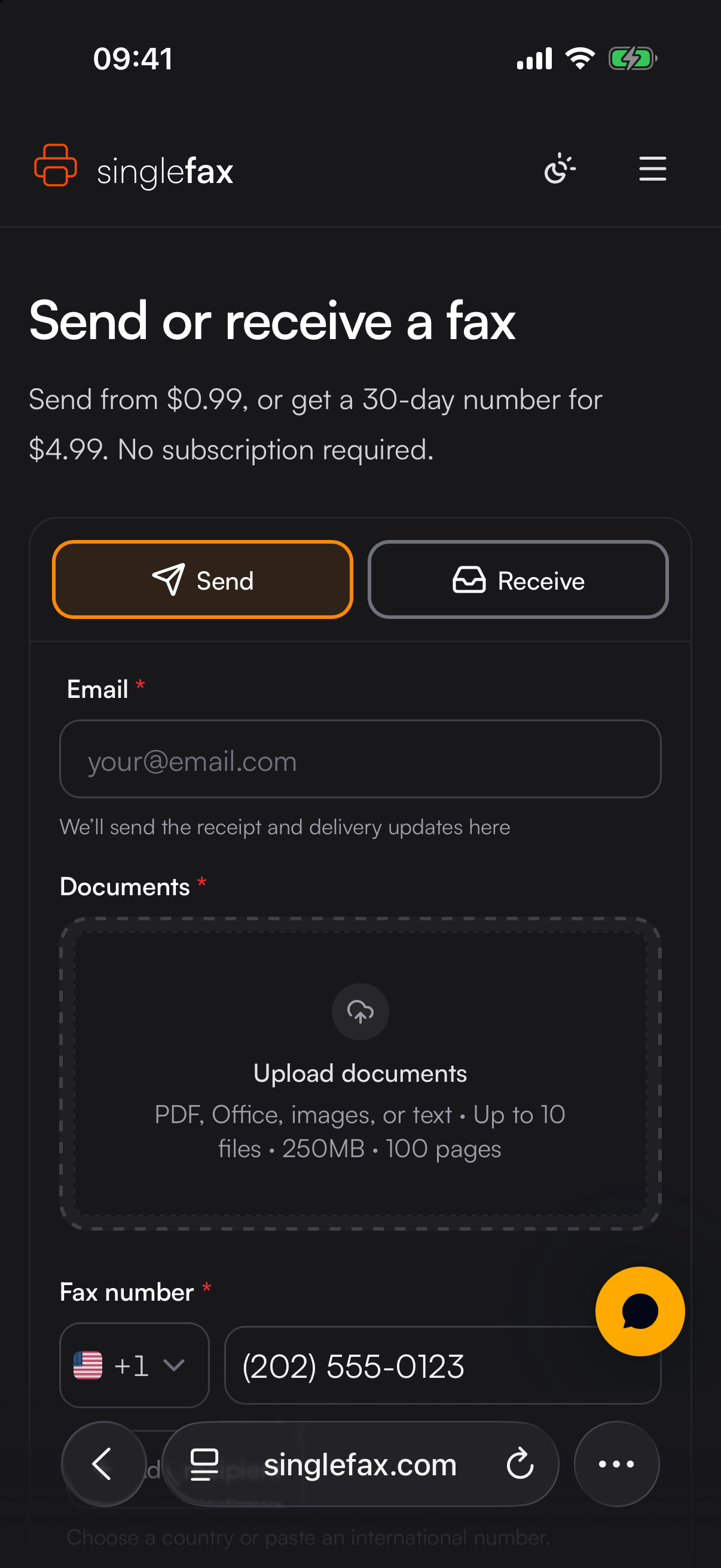
*Safari on iPhone 17 Pro, iOS 26.5, captured 8 October 2026. 1: enter your email for updates. 2: choose Upload documents to attach the saved PDF. 3: enter the recipient’s verified fax number. The number pictured is fictional; no fax was sent.*
## Method 2: fax from Mail or Gmail
Compose a new message to **`send@fax.delivery`**. Put the recipient's fax number with country code in **Subject** and attach the actual PDF, Word file or supported photos. Keep the email within **ten files and ten MB**, leaving room for message overhead.
Send the email and read the gateway reply. Review its destination quote and complete the payment link; sending the email alone does not start the paid fax. Keep the final transmission result when it arrives.
On iPhone, use the mail app's attachment control to insert the saved document. Do not use Mail Drop or a Drive sharing link as a substitute for the actual attachment. A link that another person can open is not necessarily a file the gateway can convert.
Read [email-to-fax instructions](https://singlefax.com/email-to-fax) or the [Gmail guide](https://singlefax.com/blog/how-to-fax-from-gmail) for the full workflow. If attaching several files feels awkward on a small screen, Safari upload gives you another way to review the packet.
## Method 3: use the WhatsApp gateway
For ordinary documents, send the file or photo and destination number to **+1 (628) 234-2010** through WhatsApp. SingleFax replies with a quote and payment link, then provides delivery updates. Review the number and quote before paying.
Use the [WhatsApp-to-fax page](https://singlefax.com/whatsapp-to-fax) for supported formats and limits. Include every page as a document or clear image; a message describing the attachment is not the missing page itself. Keep the final transmission result separately from the chat message.
WhatsApp is not SingleFax's HIPAA sending workflow. Use the HIPAA Secure web route for PHI handled by covered entities or business associates.
## Scan quality: make the printed fax readable
Fax converts a page to a constrained image format. A photo that looks attractive on a bright color display can lose faint handwriting or small text when transmitted. Prefer a document scan and inspect it at a comfortable reading size.
| Do | Avoid |
| --- | --- |
| Use even light on a flat page | Shadows over text or a signature |
| Keep all four page corners | Cropping dates, footers or form fields |
| Use dark text on a light background | Faint pencil, colored highlights or decorative fills |
| Preview a black-and-white or grayscale scan | Assuming every color remains distinguishable |
| Combine related pages in order | Sending unexplained separate pieces |
| Inspect the exported PDF | Relying only on the camera preview |
If you need to sign digitally, check whether the recipient accepts that signature method. Apple documents adding signatures through Markup, but the recipient's filing rules determine whether a particular signature is acceptable.
## Receive a fax on your iPhone or iPad
Get a [free US fax number for 24 hours](https://singlefax.com/free-fax-number), with no card required, and give it to the sender. Incoming faxes arrive as PDFs in your email and can open on iPhone or iPad. The sending machine does not need to know which device you use.
Choose a **$4.99 30-day number** when a reply may take longer. A [$97 lifetime number](https://singlefax.com/lifetime-fax-number) includes starter credit rather than unlimited traffic; [monthly plans](https://singlefax.com/pricing) suit continuing use. Keep the number active for as long as the sender has it on file.
A free receiving number does not include free outbound faxing or automatically support every regulated workflow. Read the receiving product's limits and choose the appropriate account for sensitive documents.
Free receiving requires a verified email, with one active free number at a time, up to three claims per rolling 30 days and **25 free inbound pages across those claims**. Extra faxes may be held for payment to view. The free tier is not HIPAA; the $4.99 30-day product includes its first received fax, with additional receiving charged under its terms.
## Medical records and tax documents
For PHI handled by a covered entity or business associate, use [HIPAA Secure fax in Safari](https://singlefax.com/hipaa-fax), from **$6.50**, with its electronic BAA and applicable safeguards. Regular email and WhatsApp gateways are separate products. A cover-sheet disclaimer alone does not make a transmission compliant.
For IRS forms, start with the relevant routing guide: [Form 2848](https://singlefax.com/blog/fax-form-2848-irs-power-of-attorney-2026), [Form 2553](https://singlefax.com/blog/fax-form-2553-s-corp-election-2026) or [SS-4](https://singlefax.com/blog/apply-for-ein-by-fax-ss4). Confirm the packet and number before sending; a department's voice line is not its fax line.
## App Store apps versus browser faxing
An app can be convenient for a regular inbox, scanning and a continuing account. Compare its actual sending allowance, receiving number and renewal terms. A free download can still require credits or a weekly, monthly or annual subscription to send.
For a single ordinary fax, the browser method avoids installing an app or managing a trial. It does not promise unlimited free sending. See [fax apps compared](https://singlefax.com/blog/best-fax-apps) for the separate app choices and [one-time services](https://singlefax.com/blog/best-one-time-pay-per-fax-services-2026) for occasional use.
## Troubleshooting
| Problem | Next step |
| --- | --- |
| Scan is blurry | Rescan with even light; inspect text and signatures before uploading |
| File is missing in the picker | Save the complete file to Files and confirm it opens there |
| Upload or conversion stalls | Check the connection, file format and any password protection |
| Number is rejected | Verify country, area code and direct fax line; remove extensions |
| Busy or no answer | Confirm the recipient's line is available, then follow the result instructions |
| No result email | Check the entered address and Spam; distinguish a receipt from the final result |
[Open the send page](https://singlefax.com/send-or-receive-fax?type=send) when the complete packet is ready. For other devices and a general checklist, use [how to send a fax](https://singlefax.com/blog/how-to-send-a-fax).
## Frequently asked questions
Can I fax from my iPhone to a regular fax machine?
Yes. Upload your scan or document to an online fax service and enter the recipient’s verified fax number. The service calls their regular fax machine; they do not need an iPhone or the same app.
Do I need an app to fax from my iPhone?
\[object Object]
Does the iPhone have a built-in fax?
Notes and Files can scan documents, but scanning does not dial a fax number. To transmit a fax, use an online fax service, an email gateway or a supported fax app.
Can I send a fax for free from my iPhone?
Some providers offer limited free sending with page, destination or branding restrictions. SingleFax's sending route is paid, from $0.99. Its free 24-hour receiving number is a different product. App downloads and trials are not necessarily free fax transmissions.
How much does it cost to fax from an iPhone?
SingleFax starts at $0.99 for up to ten document pages, with $0 on failed delivery. Additional document pages are about $0.08 each.
Can I fax a photo from my iPhone?
Yes. Supported photos, including HEIC, can be converted to fax pages. A document scan saved as a PDF is usually easier to check for page order, shadows and cropped signatures than a casual photograph.
Can I receive a fax on my iPhone?
Yes. Use an online receiving number and open incoming PDF faxes in your email on the phone. SingleFax offers a free US number for 24 hours, a $4.99 30-day option, and continuing monthly or lifetime options.
Can I fax from an iPad?
\[object Object]
Is it safe to fax medical records from my phone?
Choose the appropriate service and recipient. Covered entities and business associates sending PHI should use SingleFax's HIPAA Secure web workflow with its BAA and required safeguards. Ordinary email and WhatsApp gateways are not that workflow.
## Sources
- [App Store: SingleFax: Scan & Fax](https://apps.apple.com/app/id6810689541)
- [Apple: Scan documents in Notes or Files](https://support.apple.com/en-us/108963)
- [Apple: Add email attachments in Mail](https://support.apple.com/guide/iphone/add-email-attachments-iph8580f163b/27/ios/27)
- [Google: Gmail attachments on iPhone and iPad](https://support.google.com/mail/answer/6584?co=GENIE.Platform%3DiOS&hl=en)
- [SingleFax: Pricing](https://singlefax.com/pricing)
- [SingleFax: Email gateway](https://singlefax.com/email-to-fax)
- [SingleFax: WhatsApp gateway](https://singlefax.com/whatsapp-to-fax)
## Send a fax
[Send a fax](https://singlefax.com/send-or-receive-fax?type=send) [Get a US or Canadian number](https://singlefax.com/send-or-receive-fax?type=receive)
## Related guides
[How to Fill Out Form SS-4 and Apply for an EIN by Fax (2026 Walkthrough)
Line-by-line Form SS-4 walkthrough for an EIN by fax: what to write for foreign owners, common mistakes, the return fax and what happens after you send.UpdatedNov 11, 2026](https://singlefax.com/blog/apply-for-ein-by-fax-ss4) [Best Fax Apps for iPhone & Android: 2026 Costs
Compare six cell phone fax app options by free limits, subscriptions, page credits and BAA support. Includes a browser option for one fax without an app subscription.UpdatedOct 27, 2026](https://singlefax.com/blog/best-fax-apps) [Best Free Fax Numbers Online (2026): Receive Faxes Free
Free fax numbers for receiving in 2026: 24-hour numbers, toll-free options, trials and public queues. How long each lasts, page limits and the catch.UpdatedOct 24, 2026](https://singlefax.com/blog/best-free-fax-numbers-online-2026)
[singlefax](https://singlefax.com/)
Send once. Receive when you need to.
[](https://apps.apple.com/app/id6810689541) [](https://play.google.com/store/apps/details?id=com.monocube.singlefax)
[Add to Chrome](https://chromewebstore.google.com/detail/singlefax-fax-a-document/ojpmpilgkmjcfebhpkdmmjlkbcifkkej) [SingleFax on LinkedIn](https://www.linkedin.com/company/singlefax/) [SingleFax on Facebook](https://www.facebook.com/singlefax) [SingleFax on Instagram](https://www.instagram.com/singlefax.app) [SingleFax on Threads](https://www.threads.com/@singlefax.app) [SingleFax on YouTube](https://www.youtube.com/@singlefax) [SingleFax on GitHub](https://github.com/SingleFax)
## Fax services
- [Send a fax](https://singlefax.com/send-or-receive-fax?type=send)
- [Receive faxes](https://singlefax.com/send-or-receive-fax?type=receive)
- [Free 24-hour number](https://singlefax.com/free-fax-number)
- [Lifetime number](https://singlefax.com/lifetime-fax-number)
- [Number porting](https://singlefax.com/number-porting)
- [Test fax](https://singlefax.com/test-fax-number)
- [Company plans](https://singlefax.com/for-companies)
- [HIPAA Secure](https://singlefax.com/hipaa-fax)
- [Online fax](https://singlefax.com/online-fax)
- [Email to fax](https://singlefax.com/email-to-fax)
- [WhatsApp to fax](https://singlefax.com/whatsapp-to-fax)
## IRS filings
- [All IRS filings](https://singlefax.com/irs-filings)
- [EIN · Form SS-4](https://singlefax.com/get-ein)
- [Form 5472](https://singlefax.com/file-5472)
- [Form 7004](https://singlefax.com/file-7004)
- [Form 2553](https://singlefax.com/file-2553)
- [Form 2848](https://singlefax.com/file-2848)
- [Form 4506-T](https://singlefax.com/file-4506-t)
- [Form 8821](https://singlefax.com/file-8821)
- [Form 8802](https://singlefax.com/file-8802)
- [Form 8655](https://singlefax.com/file-8655)
- [Form 3911](https://singlefax.com/file-3911)
- [Form 8233](https://singlefax.com/file-8233)
- [NY POA-1](https://singlefax.com/file-ny-poa-1)
## Tools & resources
- [Free fax tools](https://singlefax.com/free-fax-tools)
- [Fax services near me](https://singlefax.com/fax-near-me)
- [Prepare a fax PDF](https://singlefax.com/prepare-fax)
- [Printable test page](https://singlefax.com/fax-test-page)
- [Cover sheets](https://singlefax.com/fax-cover-sheet)
- [Mobile app](https://singlefax.com/mobile-app)
- [Chrome extension](https://singlefax.com/chrome-extension)
- [Developers](https://singlefax.com/developers)
- [AI fax agents](https://singlefax.com/agents)
- [Versioning](https://singlefax.com/versioning)
- [Congress fax directory](https://singlefax.com/fax/congress)
- [Senate fax directory](https://singlefax.com/fax/senate)
- [Governor fax directory](https://singlefax.com/fax/governors)
## SingleFax
- [Pricing](https://singlefax.com/pricing)
- [Blog](https://singlefax.com/blog)
- [About](https://singlefax.com/about)
- [Contact](https://singlefax.com/contact)
- [Support](https://singlefax.com/support)
- [FAQ](https://singlefax.com/support#faq)
© 2026 SingleFax
[Privacy](https://singlefax.com/privacy-policy) [Terms](https://singlefax.com/terms-of-service) [Refunds](https://singlefax.com/refund-policy) [Report abuse](https://singlefax.com/abuse)
```json
{"@context":"https://schema.org","@type":"HowTo","name":"Fax a document from an iPhone in Safari","video":{"@id":"https://singlefax.com/videos/fax-from-phone#video-2vtJAFEsA38"},"tool":[{"@type":"HowToTool","name":"iPhone"},{"@type":"HowToTool","name":"Safari"}],"supply":[{"@type":"HowToSupply","name":"Document"}],"estimatedCost":{"@type":"MonetaryAmount","value":0.99,"currency":"USD"},"step":[{"@type":"HowToStep","name":"Scan and inspect","text":"Use Notes or Files to scan all pages. Save the PDF and inspect signatures, page order and readability."},{"@type":"HowToStep","name":"Open the sender","text":"Open SingleFax in Safari, choose Send and select Upload documents to attach the saved file."},{"@type":"HowToStep","name":"Address the fax","text":"Enter the recipient's verified direct fax number and the email for your delivery result."},{"@type":"HowToStep","name":"Add a cover if needed","text":"Add a short routing cover when the recipient requests it, with only the identifiers needed."},{"@type":"HowToStep","name":"Review and pay","text":"Review the document, cover, destination quote and payment terms, then complete checkout."},{"@type":"HowToStep","name":"Save the result","text":"Wait for the final fax result email and keep the delivery confirmation with your document."}]}
```
```json
{"@context":"https://schema.org","@graph":[{"@id":"https://singlefax.com/#website","@type":"WebSite","description":"SingleFax lets you send and receive one time faxes from your phone or computer. No signup & account registration required.","inLanguage":"en","name":"SingleFax - Send & Receive one time faxes","url":"https://singlefax.com/","publisher":{"@id":"https://singlefax.com/#/schema/organization/1"},"workTranslation":[{"@id":"https://singlefax.com/de#website"},{"@id":"https://singlefax.com/fr#website"},{"@id":"https://singlefax.com/es#website"},{"@id":"https://singlefax.com/it#website"},{"@id":"https://singlefax.com/zh-tw#website"},{"@id":"https://singlefax.com/pt-br#website"},{"@id":"https://singlefax.com/tr#website"},{"@id":"https://singlefax.com/ko#website"},{"@id":"https://singlefax.com/ja#website"},{"@id":"https://singlefax.com/ar#website"}]},{"@id":"https://singlefax.com/blog/how-to-fax-from-iphone#webpage","dateModified":"2026-10-27","datePublished":"2026-10-10","description":"Fax with the SingleFax iPhone app or use Safari, Mail or Gmail. Free app download; sending starts at $0.99 for up to 10 pages, pay only if delivered.","name":"How to Fax From iPhone: App or Safari, From $0.99","url":"https://singlefax.com/blog/how-to-fax-from-iphone","@type":["WebPage","FAQPage"],"breadcrumb":{"@id":"https://singlefax.com/blog/how-to-fax-from-iphone#breadcrumb"},"isPartOf":{"@id":"https://singlefax.com/#website"},"mainEntity":[{"@id":"https://singlefax.com/blog/how-to-fax-from-iphone#/schema/question/1"},{"@id":"https://singlefax.com/blog/how-to-fax-from-iphone#/schema/question/2"},{"@id":"https://singlefax.com/blog/how-to-fax-from-iphone#/schema/question/3"},{"@id":"https://singlefax.com/blog/how-to-fax-from-iphone#/schema/question/4"},{"@id":"https://singlefax.com/blog/how-to-fax-from-iphone#/schema/question/5"},{"@id":"https://singlefax.com/blog/how-to-fax-from-iphone#/schema/question/6"},{"@id":"https://singlefax.com/blog/how-to-fax-from-iphone#/schema/question/7"},{"@id":"https://singlefax.com/blog/how-to-fax-from-iphone#/schema/question/8"},{"@id":"https://singlefax.com/blog/how-to-fax-from-iphone#/schema/question/9"}],"potentialAction":[{"@type":"ReadAction","target":["https://singlefax.com/blog/how-to-fax-from-iphone"]}]},{"@id":"https://singlefax.com/blog/how-to-fax-from-iphone#article","dateModified":"2026-10-27","datePublished":"2026-10-10","description":"Fax with the SingleFax iPhone app or use Safari, Mail or Gmail. Free app download; sending starts at $0.99 for up to 10 pages, pay only if delivered.","headline":"How to Fax From iPhone: App or Safari, From $0.99","inLanguage":"en","thumbnailUrl":"https://singlefax.com/images/versioned/b1631ddf3bcaaafc/how-to-fax-from-iphone.jpg","@type":["Article","BlogPosting"],"author":{"@id":"https://singlefax.com/authors/mircea-rila#person"},"image":{"@id":"https://singlefax.com/#/schema/image/1"},"isPartOf":{"@id":"https://singlefax.com/blog/how-to-fax-from-iphone#webpage"},"mainEntityOfPage":{"@id":"https://singlefax.com/blog/how-to-fax-from-iphone#webpage"},"publisher":{"@id":"https://singlefax.com/#/schema/organization/1"},"speakable":{"@type":"SpeakableSpecification","cssSelector":["[data-speakable-lead]","[data-speakable-faq] [data-slot=\"body\"]"]}},{"@id":"https://singlefax.com/blog/how-to-fax-from-iphone#breadcrumb","@type":"BreadcrumbList","itemListElement":[{"@type":"ListItem","name":"Guides","item":"https://singlefax.com/blog","position":1},{"@type":"ListItem","name":"How to Fax From iPhone: App or Safari, From $0.99","item":"https://singlefax.com/blog/how-to-fax-from-iphone","position":2}]},{"@id":"https://singlefax.com/blog/how-to-fax-from-iphone#/schema/question/1","@type":"Question","inLanguage":"en","name":"Can I fax from my iPhone to a regular fax machine?","acceptedAnswer":{"@type":"Answer","text":"Yes. Upload your scan or document to an online fax service and enter the recipient’s verified fax number. The service calls their regular fax machine; they do not need an iPhone or the same app."}},{"@id":"https://singlefax.com/blog/how-to-fax-from-iphone#/schema/question/2","@type":"Question","inLanguage":"en","name":"Do I need an app to fax from my iPhone?","acceptedAnswer":{"@type":"Answer","text":"[object Object]"}},{"@id":"https://singlefax.com/blog/how-to-fax-from-iphone#/schema/question/3","@type":"Question","inLanguage":"en","name":"Does the iPhone have a built-in fax?","acceptedAnswer":{"@type":"Answer","text":"Notes and Files can scan documents, but scanning does not dial a fax number. To transmit a fax, use an online fax service, an email gateway or a supported fax app."}},{"@id":"https://singlefax.com/blog/how-to-fax-from-iphone#/schema/question/4","@type":"Question","inLanguage":"en","name":"Can I send a fax for free from my iPhone?","acceptedAnswer":{"@type":"Answer","text":"Some providers offer limited free sending with page, destination or branding restrictions. SingleFax's sending route is paid, from $0.99. Its free 24-hour receiving number is a different product. App downloads and trials are not necessarily free fax transmissions."}},{"@id":"https://singlefax.com/blog/how-to-fax-from-iphone#/schema/question/5","@type":"Question","inLanguage":"en","name":"How much does it cost to fax from an iPhone?","acceptedAnswer":{"@type":"Answer","text":"SingleFax starts at $0.99 for up to ten document pages, with $0 on failed delivery. Additional document pages are about $0.08 each."}},{"@id":"https://singlefax.com/blog/how-to-fax-from-iphone#/schema/question/6","@type":"Question","inLanguage":"en","name":"Can I fax a photo from my iPhone?","acceptedAnswer":{"@type":"Answer","text":"Yes. Supported photos, including HEIC, can be converted to fax pages. A document scan saved as a PDF is usually easier to check for page order, shadows and cropped signatures than a casual photograph."}},{"@id":"https://singlefax.com/blog/how-to-fax-from-iphone#/schema/question/7","@type":"Question","inLanguage":"en","name":"Can I receive a fax on my iPhone?","acceptedAnswer":{"@type":"Answer","text":"Yes. Use an online receiving number and open incoming PDF faxes in your email on the phone. SingleFax offers a free US number for 24 hours, a $4.99 30-day option, and continuing monthly or lifetime options."}},{"@id":"https://singlefax.com/blog/how-to-fax-from-iphone#/schema/question/8","@type":"Question","inLanguage":"en","name":"Can I fax from an iPad?","acceptedAnswer":{"@type":"Answer","text":"[object Object]"}},{"@id":"https://singlefax.com/blog/how-to-fax-from-iphone#/schema/question/9","@type":"Question","inLanguage":"en","name":"Is it safe to fax medical records from my phone?","acceptedAnswer":{"@type":"Answer","text":"Choose the appropriate service and recipient. Covered entities and business associates sending PHI should use SingleFax's HIPAA Secure web workflow with its BAA and required safeguards. Ordinary email and WhatsApp gateways are not that workflow."}},{"@id":"https://singlefax.com/authors/mircea-rila#person","@type":"Person","jobTitle":"Founder & CEO, SingleFax","name":"Mircea Rilă","url":"https://singlefax.com/authors/mircea-rila","image":{"@id":"https://singlefax.com/#/schema/image/2"},"sameAs":["https://www.linkedin.com/in/mircearila/","https://x.com/zawasp"],"worksFor":{"@type":"Organization","name":"SingleFax","legalName":"Monocube LLC","url":"https://singlefax.com"}},{"@id":"https://singlefax.com/#/schema/organization/1","@type":"Organization","logo":"https://singlefax.com/android-chrome-512x512.png","name":"SingleFax","url":"https://singlefax.com/"},{"@id":"https://singlefax.com/#/schema/image/1","@type":"ImageObject","contentUrl":"https://singlefax.com/images/versioned/b1631ddf3bcaaafc/how-to-fax-from-iphone.jpg","inLanguage":"en","url":"https://singlefax.com/images/versioned/b1631ddf3bcaaafc/how-to-fax-from-iphone.jpg"},{"@id":"https://singlefax.com/#/schema/image/2","@type":"ImageObject","contentUrl":"https://singlefax.com/images/authors/mircea-rila.jpg","inLanguage":"en","url":"https://singlefax.com/images/authors/mircea-rila.jpg"}]}
```