---
title: "How to Send a Fax: Online, Phone or Machine | SingleFax"
description: "Send a fax from a computer, phone, email or fax machine. Learn number formats, cover sheets, costs and how to confirm delivery."
canonical_url: "https://singlefax.com/blog/how-to-send-a-fax"
last_updated: 2026-10-12
locale: en
meta:
"og:description": "Send a fax from a computer, phone, email or fax machine. Learn number formats, cover sheets, costs and how to confirm delivery."
"og:image": "https://singlefax.com/images/versioned/6aa3d41f561fb75c/how-to-send-a-fax.jpg"
"og:image:alt": "How to Send a Fax: Online, Phone or Machine"
"og:image:height": "800"
"og:image:type": image/jpeg
"og:image:width": "1200"
"og:title": "How to Send a Fax: Online, Phone or Machine"
---
> Index of every page on this site: [llms.txt](https://singlefax.com/llms.txt)
[singlefax](https://singlefax.com/)
[Send & receive](https://singlefax.com/send-or-receive-fax) [For companies](https://singlefax.com/for-companies)Solutions [Pricing](https://singlefax.com/pricing) [Blog](https://singlefax.com/blog)
[Sign in](https://singlefax.com/login)
[All guides](https://singlefax.com/blog)
# How to Send a Fax: Every Method, Step by Step
UpdatedOct 12, 2026 [Mircea Rilă](https://singlefax.com/authors/mircea-rila)
\*\*To send a fax online, upload your document, enter the recipient's verified fax number, review the packet and complete checkout.\*\* The service makes the fax call and returns a delivery result. With a fax machine, load the pages as its manual directs, dial the number, press Start and keep the transmission report.
[Review a one-time fax quote](https://singlefax.com/send-or-receive-fax?type=send)
$0.99 covers up to 10 pages, pay only if delivered.

This guide covers all five common methods. If you already have a digital file, [send it online](https://singlefax.com/send-or-receive-fax?type=send): sending starts at **$0.99 for up to ten document pages, with $0 if delivery fails**. Product and source details were checked on **8 October 2026**.
| Method | What you need | Who makes the fax call? | Best fit |
| --- | --- | --- | --- |
| Online from a computer | Browser, document and internet | Fax service | A PDF or Word file ready to send |
| Phone | Scan or saved file and internet | Fax service | Paper you can scan with your camera |
| Email | Actual attachments and gateway address | Fax service after its required checkout | Documents already in email |
| Fax machine | Compatible machine and working fax line | Your machine | An existing office setup |
| Store or library | Document and participating location | Staff or a self-service machine | In-person assistance |
## Before you start: document, number and cover
Prepare the complete packet before choosing the method. Check every signature, required attachment and page reference. A crisp PDF is easy to inspect, but supported Word files and photos can work too. Remove any password that prevents the sender from opening a document, and make sure scanned pages are upright, readable and not cropped at the edge.
Get the **direct fax number** from the recipient's official website, current instructions or letter. Do not assume its general telephone number accepts faxes. If you are given a voice extension, ask which direct fax line handles the document. Our [fax number guide](https://singlefax.com/blog/what-is-a-fax-number) explains the difference and how to format local and international numbers.
Decide whether the recipient needs a cover sheet and whether you need a return fax number. Those are separate from the number you are sending to. You can send a one-time fax without owning a receiving number. If you expect a reply, arrange a receiving number before writing it on the form, and make sure it will remain active for the likely reply period.
Keep a local copy of the signed packet and a way to receive the delivery result. If a deadline matters, leave time for a busy line, a failed attempt or a correction. Transmission confirmation records what happened on the fax connection; the receiving organization still controls processing and acceptance.
## Method 1: send a fax online from a computer
*Computer browser walkthrough · 53 seconds [Watch with chapters and transcript](https://singlefax.com/videos/fax-from-computer) [Watch on YouTube](https://www.youtube.com/watch?v=t0ndnIir7l8)*
This method works from a Windows PC, Mac, Chromebook or other supported browser. The computer needs internet access, rather than a telephone jack or installed fax modem. The online service converts the document and connects to the destination fax endpoint.
### 1. Open the sender
Open [SingleFax's send page](https://singlefax.com/send-or-receive-fax?type=send) and choose **Send**. A one-time guest send does not require a subscription or a receiving number. If your organization needs a HIPAA workflow, begin with [HIPAA Secure](https://singlefax.com/hipaa-fax) instead of the ordinary guest sender.
### 2. Upload your document
Select your files and inspect the prepared preview. Check page order, signatures, fine print and the total document count. Upload all parts of the packet together where possible; splitting a form and its attachments into separate faxes can make it harder for the recipient to match them.
For a document created in an office program, exporting to PDF first gives you more control over the layout. Open that PDF locally and check that it contains the expected pages. A spreadsheet's print area or a Word document's page breaks can otherwise create an unexpectedly long fax.
### 3. Enter the fax number
Select the destination country and enter the recipient's verified number. Enter the email address where you want the final result. Double-check the area code and the final digits before proceeding; a correctly transmitted fax to the wrong recipient is still a privacy and routing problem.
### 4. Add a cover sheet if needed
Use the optional cover to identify the person or department, your name and a concise purpose. Keep sensitive details out of the cover when they are unnecessary. The [free cover sheet tool](https://singlefax.com/fax-cover-sheet) also offers downloadable PDF and Word templates if you need to prepare the cover separately.
### 5. Review the quote and complete checkout
Review the destination, packet, page count and payment terms together. Sending starts at $0.99 for up to ten document pages; additional document pages are about $0.08 each. A cover created in SingleFax's composer is excluded from the billed document count. A cover you upload or merge into a PDF is part of that document and counts as a page.
Other destinations display their own quote and charge-on-dial terms. Use the terms displayed for the actual recipient rather than applying the US pay-on-success promise to every country. Complete checkout once the details are correct.
### 6. Save the final result
Wait for the final transmission result email. Save the successful confirmation with the exact packet you sent, and check the destination and reported pages. A checkout receipt or “received your request” message comes earlier in the process and is not a delivery confirmation.
For platform-specific instructions, see fax from a computer, [fax from a Mac](https://singlefax.com/blog/how-to-fax-from-mac) and [Windows Fax and Scan](https://singlefax.com/blog/windows-fax-and-scan).
## Method 2: send a fax from your phone
Your phone can scan paper and supply the internet connection. The fax provider handles transmission, so a cellular voice call or a phone's camera by itself is not the faxing step. Wi-Fi can be enough when you are using a browser service.
On iPhone, Apple's current instructions use **Notes → Attachment → Scan Documents**, or **Files → More → Scan Documents**. Capture every page, check the corners and save the finished PDF. On Android, Google Drive's documented scanner begins with the **Camera** button, then lets you adjust pages and save a PDF. Labels can vary in other manufacturers' camera and scanning apps.
Open the sender in the phone's browser, upload the saved file and follow the same number, cover, checkout and confirmation steps as on a computer. Keep the browser open long enough to complete upload and checkout; you can then use the final result email to check delivery.
The [phone hub](https://singlefax.com/blog/send-fax-from-phone) compares browser, email and app routes. Use the detailed [iPhone guide](https://singlefax.com/blog/how-to-fax-from-iphone) or Android guide for scanning and attachment steps. SingleFax's iOS app is under review; the browser method is available now.
## Method 3: send a fax from email
An email-to-fax gateway turns attachments into fax pages and places the call. It is different from typing a telephone number into Gmail's recipient field. For SingleFax, compose an email to **[send@fax.delivery](mailto:send@fax.delivery)**, put the destination fax number in the subject and attach the actual document files.
SingleFax's gateway accepts up to **ten attachments and 10 MB total**. Attach a PDF or supported document directly; a Drive, OneDrive or Dropbox sharing link does not provide the same file input. Avoid Mail Drop or a cloud-link replacement when the gateway needs the attachment itself.
Send the email, then open the reply to review the packet and complete checkout. Existing credits do not cause this email workflow to spend your balance and transmit automatically. The payment or review link is a required step. After transmission, keep the final fax result rather than only your sent-mail entry.
See [email-to-fax](https://singlefax.com/email-to-fax), [Gmail instructions](https://singlefax.com/blog/how-to-fax-from-gmail) or [Outlook instructions](https://singlefax.com/blog/how-to-fax-from-outlook). For PHI handled by a covered entity or business associate, use the appropriate HIPAA web workflow rather than assuming an ordinary mailbox and gateway meet that requirement.
## Method 4: send a fax with a fax machine
To send to a fax machine from another fax machine, make sure the sending machine has a working fax-capable connection, not just power and a scanner. A printer can scan documents without being able to transmit a fax. A multifunction machine's fax function may need a separate cable or configured service.
Load pages according to the model's instructions. Orientation is **not universal**: Brother documents face-up loading in the feeder on the MFC-L3710CW and face-down loading on the FAX-4100. A flatbed scanner may use yet another orientation. Check the diagram beside the feeder or the manufacturer's manual, particularly if you have not used that machine before.
Select Fax, enter the destination using the line's dialing rules and press the model's Start or Fax Start control. If the machine lets you preview or count the packet, check it first. Leave the original pages available until transmission finishes; some machines scan them into memory before dialing, while others behave differently.
Read the report when the call ends. An “OK” or successful result usually indicates successful transmission, but report labels and error codes vary by model. Match the number and page count. For a partial transmission, contact the recipient before sending the entire packet again if duplicate pages could create confusion.
## Method 5: fax at a store or library
Some Staples, UPS Store and FedEx Office locations offer faxing, and some libraries do too. Availability, charges, destination support and whether staff help you vary by location. Call the particular branch before traveling, especially if you need international sending, receiving or a long packet.
Bring the signed document, the correct fax number and any routing instructions. Ask how cover pages, additional pages, failed attempts and confirmation prints are charged. Keep the receipt and transmission report, and collect all originals before leaving. Do not leave sensitive pages on a public scanner or counter.
Our location guides cover Staples, The UPS Store and FedEx Office. If you already have the file and internet access, faxing without a machine can avoid a trip.
## How to dial a fax number
For US and Canadian numbers, the destination normally contains a three-digit area code and seven-digit local number. On a physical US line, whether you must put **1** before those ten digits depends on the carrier and calling context. Follow the office or carrier's instructions; do not assume every machine accepts the same format.
An office phone system may require **9** or another prefix to obtain an outside line. That prefix belongs to the sending office's telephone system. It is not part of the recipient's fax number and should not be copied into an online fax service's destination field.
On a US physical line, international dialing commonly uses **011 + country code + destination number**, subject to that line's rules. Online services normally use a country selector or **+country code** format instead. Do not insert 011 into an online field unless its instructions specifically ask for that format.
Some countries use a leading zero for national dialing that is omitted in international format. Verify the recipient's published international number instead of guessing which zero to remove. Punctuation can help humans read a number, but it does not change the destination. A voice extension also cannot generally substitute for a direct fax line.
## Cover sheet: do you need one?
A cover is useful for a shared office inbox, a named caseworker or a packet the recipient has requested. Include **To, From, date, contact details and a short subject**. If you show a page total, say whether it includes the cover so the recipient can reconcile missing pages.
Use only the identifiers needed for routing. An IRS cover can name the form and office without placing a full tax identification number in a large heading. A medical cover can name a department without listing the diagnosis. A confidentiality notice is a routing safeguard, not a substitute for a suitable service or required agreement.
Choose from the [12-template gallery](https://singlefax.com/blog/fax-cover-sheet-templates), or follow how to fill out a cover. If the recipient gives specific cover instructions, follow those ahead of a generic template.
## How much does it cost to send a fax?
Compare the whole packet and payment model, not just the starting price. A subscription pays for ongoing access; a one-time service charges for a particular send. A receiving number is a separate consideration when you need a reply.
| Option | Price or cost basis | What to check |
| --- | --- | --- |
| SingleFax | $0.99 for up to ten document pages; about $0.08 per extra page | $0 if delivery fails; composer cover excluded |
| SingleFax, other destinations | Quote before checkout | Destination-specific charge-on-dial terms |
| SingleFax Standard | $7.90/month or $79/year, 300 pooled monthly pages | Included destinations, overage and receiving needs |
| Store or library | Location-specific quote | First/additional page, cover and failed-attempt charges |
| Your fax machine | Equipment, line/service and possible calling charges | Maintenance, paper, dialing and confirmation |
These SingleFax prices were checked on 8 October 2026. The [pricing page](https://singlefax.com/pricing) has current terms, while the [one-time service comparison](https://singlefax.com/blog/best-one-time-pay-per-fax-services-2026) compares paid alternatives. For genuine free sending quotas, see the [best free online fax services](https://singlefax.com/blog/best-free-online-fax-services). A “free app” can still charge for sending; a free receiving number does not make outbound faxes free.
## How to know your fax went through
Look for the **final fax transmission result**, not an upload message, email acknowledgement or payment receipt. Compare the reported destination, timestamp and pages with the packet you intended to send. Save the confirmation and the original document together so you can explain what was sent later.
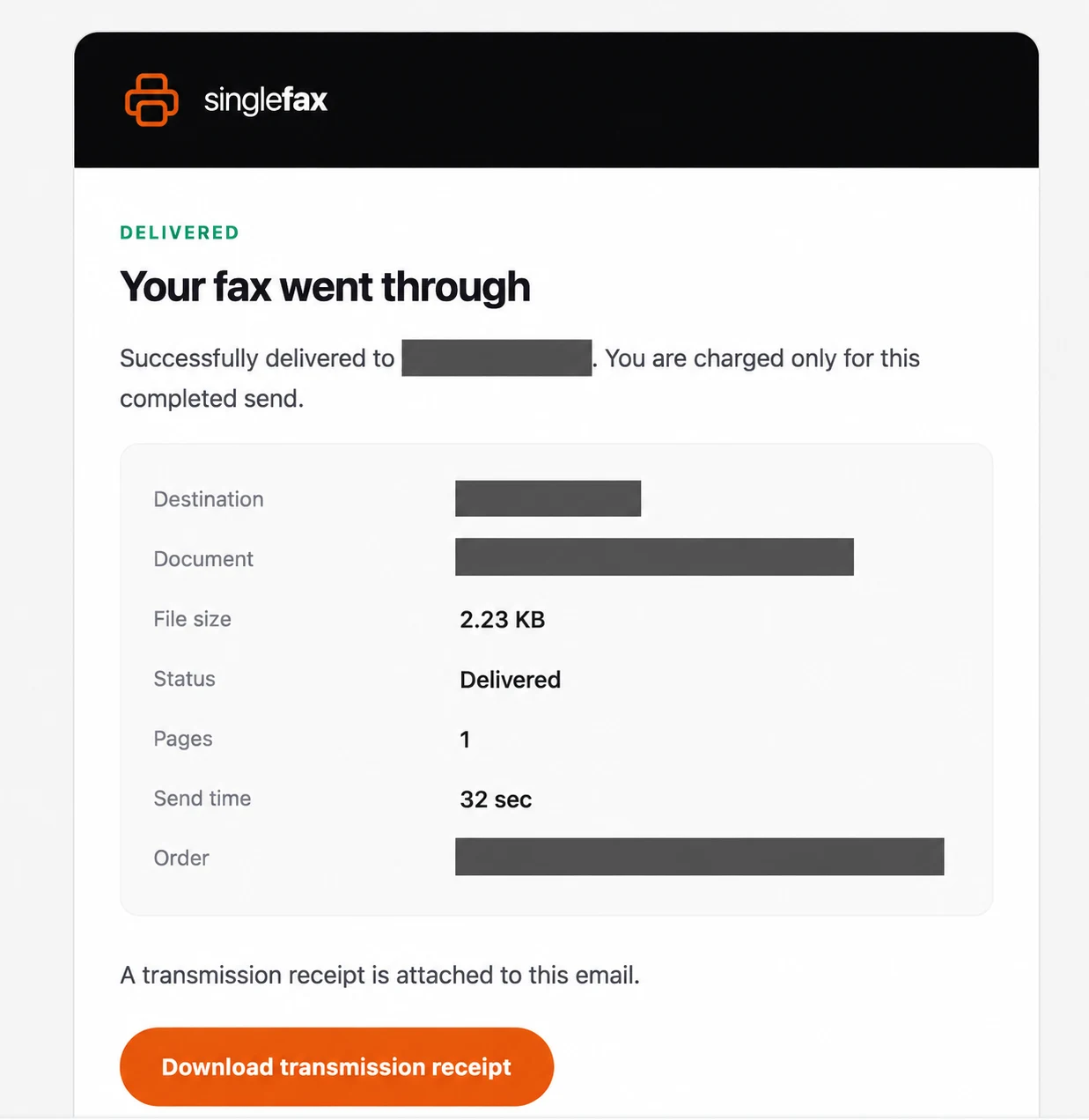
*SingleFax delivery-result email, supplied 8 October 2026. The destination number, document name and order ID are redacted. Check the final Delivered status and save the transmission receipt; delivery does not establish the recipient’s approval.*
Successful transmission means the receiving endpoint accepted the fax transmission. It does not prove that a particular staff member read it, that a form was complete or that an application was approved. For example, an IRS S corporation election has its own acceptance process after delivery. If acceptance matters, follow the agency's acknowledgement and follow-up instructions.
If no final result arrives, check spam and the address you entered. Review the service's status before resubmitting. Sending again while an earlier attempt is still processing can create duplicate packets.
## Troubleshooting a failed or incomplete fax
**Busy:** the destination may be receiving another call. Allow the sender's retry process to finish before creating a duplicate order. Repeated failures justify checking hours, availability and whether the number has changed.
**No answer or voice answer:** recheck every digit and confirm you have the direct fax line. A switchboard or extension may lead to a person rather than a fax endpoint. Ask the recipient for a suitable destination instead of repeatedly retrying an unverified number.
**Missing or unreadable pages:** inspect the source file for cropped edges, dark shadows, faint handwriting and blank scans. Confirm whether the cover is included in the reported count. If part of a fax arrived, agree with the recipient whether to resend the complete packet or only the missing pages.
**Communication error:** a connection can fail even when the number is correct. On a machine, check the line and consult its model-specific code. Online, retain the final error and contact support with the order details. A shorter packet can be easier to troubleshoot, but do not split an application without considering the recipient's instructions.
## Sending sensitive documents
Verify the destination immediately before sending confidential material. Minimize unnecessary details on the cover, inspect every attachment and keep the confirmation securely. A fax machine's presence or a confidentiality footer does not by itself establish suitable privacy safeguards.
HHS permits treatment communications by fax with reasonable safeguards, including checking unfamiliar fax numbers. Covered entities and business associates should also consider their service relationship and required BAA. SingleFax's [HIPAA Secure workflow](https://singlefax.com/hipaa-fax) is the relevant route for that need; the ordinary email and WhatsApp gateways are different workflows.
For tax forms, use the current [IRS fax number directory](https://singlefax.com/blog/irs-fax-numbers-2026) and the form's instructions. Different forms and filing situations use different fax numbers. A fax transmission receipt is useful evidence of sending, while the agency's processing and acceptance remain separate steps.
[Send your prepared packet](https://singlefax.com/send-or-receive-fax?type=send), or start with a [free cover sheet](https://singlefax.com/fax-cover-sheet) if the recipient needs one.
For the transmission process behind these methods, read [how fax works](https://singlefax.com/blog/how-does-fax-work).
## Frequently asked questions
How do you send a fax?
1\. Prepare the complete document and verify the recipient's fax number. 2. Upload it to an online fax service, review the packet and quote, and complete checkout. 3. Keep the final transmission result and match its number and page count to your document. With a fax machine, load the pages as its manual directs, dial the verified number and press Start.
Do I need to dial 1 when sending a fax?
On a US fax machine, follow your carrier's dialing rules; some lines require 1 before a ten-digit long-distance number. Office lines may also require an outside-line prefix. In an online service, select the country and enter the destination number; do not add an office prefix or 011 unless the service explicitly requests it.
Can I send a fax for free?
Some services offer a limited free sending tier with page, daily, destination or branding restrictions. SingleFax sending is paid, from $0.99. Its free 24-hour receiving number is a separate product.
Can I send a fax from Gmail?
Yes, through an email-to-fax provider. With SingleFax, attach the document to an email to send@fax.delivery, put the fax number in the subject, then follow the reply to review and pay. A normal Gmail message addressed to a telephone number does not itself place a fax call.
How do I send a fax without a fax machine?
Upload the document to an online fax service, enter the verified recipient number, review the quote and complete checkout. The service transmits the fax. You can also use its email gateway, a supported app or a store that offers faxing.
How long after sending will the recipient get my fax?
The recipient receives the pages during transmission. Allow about 30 seconds to 1 minute per ordinary text page, plus dialing and connection setup; fine resolution, images, queues and retries can add time. Wait for the final successful transmission result, then check the destination and page count. A printout or email notification may appear later. See [fax delivery timing and confirmation](https://singlefax.com/blog/how-long-does-a-fax-take#how-to-know-if-a-fax-went-through).
How many pages can I fax?
Limits vary by service, file size and recipient. SingleFax's $0.99 price covers up to ten document pages, with additional pages priced separately. Check the upload limits and final quote for your packet; an included composer cover and an uploaded cover are counted differently.
Do I need a cover sheet?
Use one when the recipient requests it or needs help routing the packet. Include the intended person or department, sender contact details and a short purpose. A cover does not replace signed forms or establish HIPAA compliance on its own.
How do I know if my fax went through?
Keep the service's final successful transmission result or the machine's successful report and match the number and page count to your packet. Successful transmission does not prove that the recipient has read, accepted or approved the document.
## Sources
- [SingleFax: Pricing and destination terms](https://singlefax.com/pricing)
- [Brother: Send a fax from an MFC-L3710CW](https://support.brother.com/g/b/faqend.aspx?c=us&faqid=faq00002732_502&lang=en&pfs=1&prod=mfcl3710cw_us_eu_as)
- [Brother: Fax document orientation on the FAX-4100](https://support.brother.com/g/b/faqend.aspx?c=us&faqid=faq00002732_011&lang=en&prod=fax4100_us)
- [Apple: Scan documents in Notes or Files](https://support.apple.com/en-us/108963)
- [Google: Scan documents with Google Drive](https://support.google.com/drive/answer/3145835?co=GENIE.Platform%3DAndroid&hl=en-GB)
- [HHS: Fax and other treatment communications](https://www.hhs.gov/hipaa/for-professionals/faq/does-hipaa-permit-a-doctor-to-share-patient-information-for-treatment-over-the-phone/index.html)
- [HHS: Business associates](https://www.hhs.gov/hipaa/for-professionals/privacy/guidance/business-associates/index.html)
- [IRS: Form 2553 filing instructions](https://www.irs.gov/instructions/i2553)
## Send a fax
[Send a fax](https://singlefax.com/send-or-receive-fax?type=send) [Get a US or Canadian number](https://singlefax.com/send-or-receive-fax?type=receive)
## Related guides
[How to Fill Out Form SS-4 and Apply for an EIN by Fax (2026 Walkthrough)
Line-by-line Form SS-4 walkthrough for an EIN by fax: what to write for foreign owners, common mistakes, the return fax and what happens after you send.UpdatedOct 14, 2026](https://singlefax.com/blog/apply-for-ein-by-fax-ss4) [Best Free Fax Numbers Online (2026): Receive Faxes Free
Free fax numbers for receiving in 2026: 24-hour numbers, toll-free options, trials and public queues. How long each lasts, page limits and the catch.UpdatedOct 15, 2026](https://singlefax.com/blog/best-free-fax-numbers-online-2026) [Best Free Online Fax Services (2026): 7 Options Compared
The best free online fax services in 2026 compared: free sending quotas, free receiving numbers, page caps, expiry and catches, in one table.Oct 15, 2026](https://singlefax.com/blog/best-free-online-fax-services)
[singlefax](https://singlefax.com/)
Send once. Receive when you need to.
[](https://play.google.com/store/apps/details?id=com.monocube.singlefax) [Add to Chrome](https://chromewebstore.google.com/detail/singlefax-fax-a-document/ojpmpilgkmjcfebhpkdmmjlkbcifkkej) [SingleFax on LinkedIn](https://www.linkedin.com/company/singlefax/) [SingleFax on Facebook](https://www.facebook.com/singlefax) [SingleFax on Instagram](https://www.instagram.com/singlefax.app) [SingleFax on Threads](https://www.threads.com/@singlefax.app) [SingleFax on YouTube](https://www.youtube.com/@singlefax) [SingleFax on GitHub](https://github.com/SingleFax)
## Fax services
- [Send a fax](https://singlefax.com/send-or-receive-fax?type=send)
- [Receive faxes](https://singlefax.com/send-or-receive-fax?type=receive)
- [Free 24-hour number](https://singlefax.com/free-fax-number)
- [Lifetime number](https://singlefax.com/lifetime-fax-number)
- [Number porting](https://singlefax.com/number-porting)
- [Test fax](https://singlefax.com/test-fax-number)
- [Company plans](https://singlefax.com/for-companies)
- [HIPAA Secure](https://singlefax.com/hipaa-fax)
- [Online fax](https://singlefax.com/online-fax)
- [Email to fax](https://singlefax.com/email-to-fax)
- [WhatsApp to fax](https://singlefax.com/whatsapp-to-fax)
## IRS filings
- [All IRS filings](https://singlefax.com/irs-filings)
- [EIN · Form SS-4](https://singlefax.com/get-ein)
- [Form 5472](https://singlefax.com/file-5472)
- [Form 7004](https://singlefax.com/file-7004)
- [Form 2553](https://singlefax.com/file-2553)
- [Form 2848](https://singlefax.com/file-2848)
- [Form 4506-T](https://singlefax.com/file-4506-t)
- [Form 8821](https://singlefax.com/file-8821)
- [Form 8802](https://singlefax.com/file-8802)
- [Form 8655](https://singlefax.com/file-8655)
- [Form 3911](https://singlefax.com/file-3911)
- [Form 8233](https://singlefax.com/file-8233)
- [NY POA-1](https://singlefax.com/file-ny-poa-1)
## Tools & resources
- [Free fax tools](https://singlefax.com/free-fax-tools)
- [Prepare a fax PDF](https://singlefax.com/prepare-fax)
- [Printable test page](https://singlefax.com/fax-test-page)
- [Cover sheets](https://singlefax.com/fax-cover-sheet)
- [Mobile app](https://singlefax.com/mobile-app)
- [Chrome extension](https://singlefax.com/chrome-extension)
- [Developers](https://singlefax.com/developers)
- [AI fax agents](https://singlefax.com/agents)
- [Versioning](https://singlefax.com/versioning)
- [Congress fax directory](https://singlefax.com/fax/congress)
- [Senate fax directory](https://singlefax.com/fax/senate)
- [Governor fax directory](https://singlefax.com/fax/governors)
## SingleFax
- [Pricing](https://singlefax.com/pricing)
- [Blog](https://singlefax.com/blog)
- [About](https://singlefax.com/about)
- [Contact](https://singlefax.com/contact)
- [Support](https://singlefax.com/support)
© 2026 SingleFax
[Privacy](https://singlefax.com/privacy-policy) [Terms](https://singlefax.com/terms-of-service) [Refunds](https://singlefax.com/refund-policy) [Report abuse](https://singlefax.com/abuse)
```json
{"@context":"https://schema.org","@type":"HowTo","name":"Send a fax online from a computer","video":{"@id":"https://singlefax.com/videos/fax-from-computer#video-t0ndnIir7l8"},"tool":[{"@type":"HowToTool","name":"Computer"},{"@type":"HowToTool","name":"Web browser"}],"supply":[{"@type":"HowToSupply","name":"Document"},{"@type":"HowToSupply","name":"Recipient fax number"}],"step":[{"@type":"HowToStep","name":"Open the sender","text":"Open SingleFax and choose Send. No fax machine or telephone line is required."},{"@type":"HowToStep","name":"Upload your document","text":"Attach the complete document and inspect the preview, signatures, order and page count."},{"@type":"HowToStep","name":"Enter the fax number","text":"Enter the verified direct fax number, destination country and result email address."},{"@type":"HowToStep","name":"Add a cover sheet","text":"If needed, add a short cover identifying the recipient, sender and purpose."},{"@type":"HowToStep","name":"Review and pay","text":"Review the quote and destination payment terms, then complete checkout."},{"@type":"HowToStep","name":"Save the result","text":"Wait for the final fax result and keep the successful transmission confirmation."}]}
```
```json
{"@context":"https://schema.org","@graph":[{"@id":"https://singlefax.com/#website","@type":"WebSite","description":"SingleFax lets you send and receive one time faxes from your phone or computer. No signup & account registration required.","inLanguage":"en","name":"SingleFax - Send & Receive one time faxes","url":"https://singlefax.com/","publisher":{"@id":"https://singlefax.com/#/schema/organization/1"},"workTranslation":[{"@id":"https://singlefax.com/de#website"},{"@id":"https://singlefax.com/fr#website"},{"@id":"https://singlefax.com/es#website"},{"@id":"https://singlefax.com/it#website"},{"@id":"https://singlefax.com/zh-tw#website"},{"@id":"https://singlefax.com/pt-br#website"},{"@id":"https://singlefax.com/tr#website"},{"@id":"https://singlefax.com/ko#website"},{"@id":"https://singlefax.com/ja#website"},{"@id":"https://singlefax.com/ar#website"}]},{"@id":"https://singlefax.com/blog/how-to-send-a-fax#webpage","dateModified":"2026-10-12","datePublished":"2026-10-17","description":"Send a fax from a computer, phone, email or fax machine. Learn number formats, cover sheets, costs and how to confirm delivery.","name":"How to Send a Fax: Online, Phone or Machine","url":"https://singlefax.com/blog/how-to-send-a-fax","@type":["WebPage","FAQPage"],"breadcrumb":{"@id":"https://singlefax.com/blog/how-to-send-a-fax#breadcrumb"},"isPartOf":{"@id":"https://singlefax.com/#website"},"mainEntity":[{"@id":"https://singlefax.com/blog/how-to-send-a-fax#/schema/question/1"},{"@id":"https://singlefax.com/blog/how-to-send-a-fax#/schema/question/2"},{"@id":"https://singlefax.com/blog/how-to-send-a-fax#/schema/question/3"},{"@id":"https://singlefax.com/blog/how-to-send-a-fax#/schema/question/4"},{"@id":"https://singlefax.com/blog/how-to-send-a-fax#/schema/question/5"},{"@id":"https://singlefax.com/blog/how-to-send-a-fax#/schema/question/6"},{"@id":"https://singlefax.com/blog/how-to-send-a-fax#/schema/question/7"},{"@id":"https://singlefax.com/blog/how-to-send-a-fax#/schema/question/8"},{"@id":"https://singlefax.com/blog/how-to-send-a-fax#/schema/question/9"}],"potentialAction":[{"@type":"ReadAction","target":["https://singlefax.com/blog/how-to-send-a-fax"]}]},{"@id":"https://singlefax.com/blog/how-to-send-a-fax#article","dateModified":"2026-10-12","datePublished":"2026-10-17","description":"Send a fax from a computer, phone, email or fax machine. Learn number formats, cover sheets, costs and how to confirm delivery.","headline":"How to Send a Fax: Online, Phone or Machine","inLanguage":"en","thumbnailUrl":"https://singlefax.com/images/versioned/6aa3d41f561fb75c/how-to-send-a-fax.jpg","@type":["Article","BlogPosting"],"author":{"@id":"https://singlefax.com/authors/mircea-rila#person"},"image":{"@id":"https://singlefax.com/#/schema/image/1"},"isPartOf":{"@id":"https://singlefax.com/blog/how-to-send-a-fax#webpage"},"mainEntityOfPage":{"@id":"https://singlefax.com/blog/how-to-send-a-fax#webpage"},"publisher":{"@id":"https://singlefax.com/#/schema/organization/1"}},{"@id":"https://singlefax.com/blog/how-to-send-a-fax#breadcrumb","@type":"BreadcrumbList","itemListElement":[{"@type":"ListItem","name":"Guides","item":"https://singlefax.com/blog","position":1},{"@type":"ListItem","name":"How to Send a Fax: Online, Phone or Machine","item":"https://singlefax.com/blog/how-to-send-a-fax","position":2}]},{"@id":"https://singlefax.com/blog/how-to-send-a-fax#/schema/question/1","@type":"Question","inLanguage":"en","name":"How do you send a fax?","acceptedAnswer":{"@type":"Answer","text":"1. Prepare the complete document and verify the recipient's fax number. 2. Upload it to an online fax service, review the packet and quote, and complete checkout. 3. Keep the final transmission result and match its number and page count to your document. With a fax machine, load the pages as its manual directs, dial the verified number and press Start."}},{"@id":"https://singlefax.com/blog/how-to-send-a-fax#/schema/question/2","@type":"Question","inLanguage":"en","name":"Do I need to dial 1 when sending a fax?","acceptedAnswer":{"@type":"Answer","text":"On a US fax machine, follow your carrier's dialing rules; some lines require 1 before a ten-digit long-distance number. Office lines may also require an outside-line prefix. In an online service, select the country and enter the destination number; do not add an office prefix or 011 unless the service explicitly requests it."}},{"@id":"https://singlefax.com/blog/how-to-send-a-fax#/schema/question/3","@type":"Question","inLanguage":"en","name":"Can I send a fax for free?","acceptedAnswer":{"@type":"Answer","text":"Some services offer a limited free sending tier with page, daily, destination or branding restrictions. SingleFax sending is paid, from $0.99. Its free 24-hour receiving number is a separate product."}},{"@id":"https://singlefax.com/blog/how-to-send-a-fax#/schema/question/4","@type":"Question","inLanguage":"en","name":"Can I send a fax from Gmail?","acceptedAnswer":{"@type":"Answer","text":"Yes, through an email-to-fax provider. With SingleFax, attach the document to an email to send@fax.delivery, put the fax number in the subject, then follow the reply to review and pay. A normal Gmail message addressed to a telephone number does not itself place a fax call."}},{"@id":"https://singlefax.com/blog/how-to-send-a-fax#/schema/question/5","@type":"Question","inLanguage":"en","name":"How do I send a fax without a fax machine?","acceptedAnswer":{"@type":"Answer","text":"Upload the document to an online fax service, enter the verified recipient number, review the quote and complete checkout. The service transmits the fax. You can also use its email gateway, a supported app or a store that offers faxing."}},{"@id":"https://singlefax.com/blog/how-to-send-a-fax#/schema/question/6","@type":"Question","inLanguage":"en","name":"How long after sending will the recipient get my fax?","acceptedAnswer":{"@type":"Answer","text":"The recipient receives the pages during transmission. Allow about 30 seconds to 1 minute per ordinary text page, plus dialing and connection setup; fine resolution, images, queues and retries can add time. Wait for the final successful transmission result, then check the destination and page count. A printout or email notification may appear later. See fax delivery timing and confirmation."}},{"@id":"https://singlefax.com/blog/how-to-send-a-fax#/schema/question/7","@type":"Question","inLanguage":"en","name":"How many pages can I fax?","acceptedAnswer":{"@type":"Answer","text":"Limits vary by service, file size and recipient. SingleFax's $0.99 price covers up to ten document pages, with additional pages priced separately. Check the upload limits and final quote for your packet; an included composer cover and an uploaded cover are counted differently."}},{"@id":"https://singlefax.com/blog/how-to-send-a-fax#/schema/question/8","@type":"Question","inLanguage":"en","name":"Do I need a cover sheet?","acceptedAnswer":{"@type":"Answer","text":"Use one when the recipient requests it or needs help routing the packet. Include the intended person or department, sender contact details and a short purpose. A cover does not replace signed forms or establish HIPAA compliance on its own."}},{"@id":"https://singlefax.com/blog/how-to-send-a-fax#/schema/question/9","@type":"Question","inLanguage":"en","name":"How do I know if my fax went through?","acceptedAnswer":{"@type":"Answer","text":"Keep the service's final successful transmission result or the machine's successful report and match the number and page count to your packet. Successful transmission does not prove that the recipient has read, accepted or approved the document."}},{"@id":"https://singlefax.com/authors/mircea-rila#person","@type":"Person","jobTitle":"Founder & CEO, SingleFax","name":"Mircea Rilă","url":"https://singlefax.com/authors/mircea-rila","image":{"@id":"https://singlefax.com/#/schema/image/2"},"sameAs":["https://www.linkedin.com/in/mircearila/","https://x.com/zawasp"],"worksFor":{"@type":"Organization","name":"SingleFax","legalName":"Monocube LLC","url":"https://singlefax.com"}},{"@id":"https://singlefax.com/#/schema/organization/1","@type":"Organization","logo":"https://singlefax.com/android-chrome-512x512.png","name":"SingleFax","url":"https://singlefax.com/"},{"@id":"https://singlefax.com/#/schema/image/1","@type":"ImageObject","contentUrl":"https://singlefax.com/images/versioned/6aa3d41f561fb75c/how-to-send-a-fax.jpg","inLanguage":"en","url":"https://singlefax.com/images/versioned/6aa3d41f561fb75c/how-to-send-a-fax.jpg"},{"@id":"https://singlefax.com/#/schema/image/2","@type":"ImageObject","contentUrl":"https://singlefax.com/images/authors/mircea-rila.jpg","inLanguage":"en","url":"https://singlefax.com/images/authors/mircea-rila.jpg"}]}
```