How to Fax From iPhone Without an App
$0.99 covers up to 10 pages, pay only if delivered.
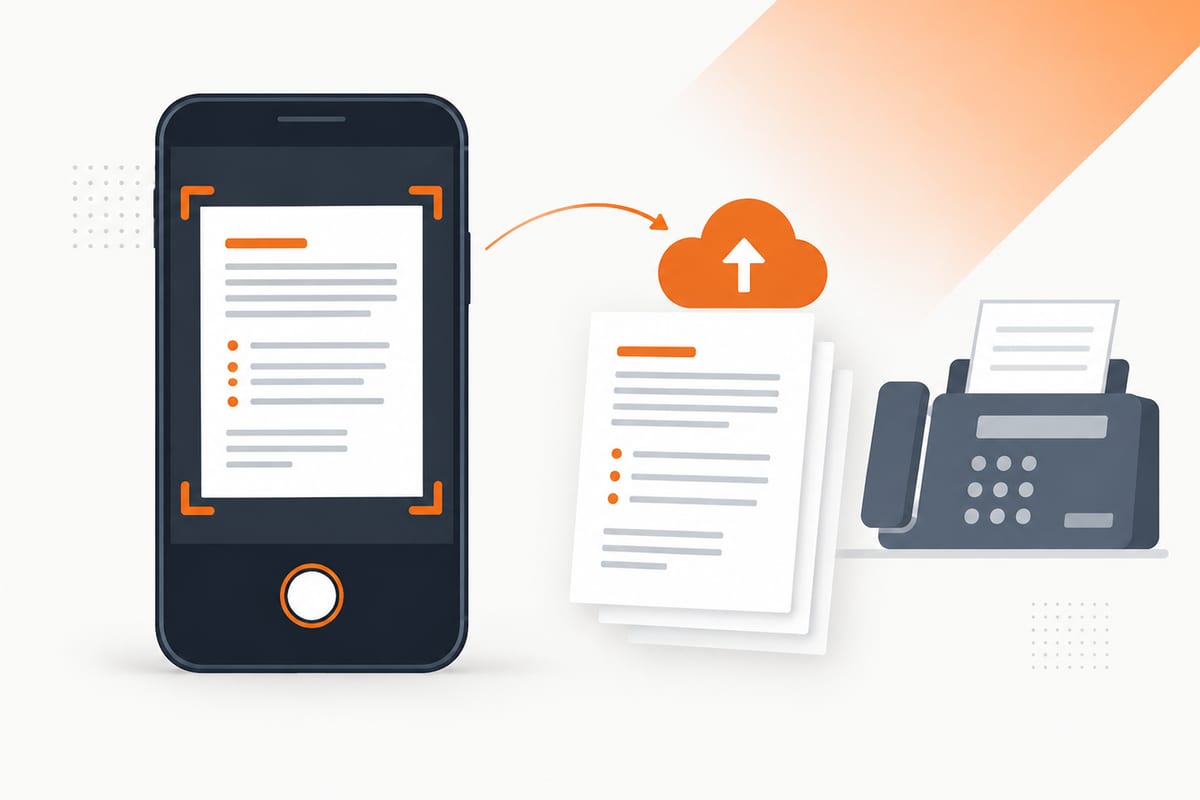
Yes, you can fax from an iPhone: scan in Notes or Files, open SingleFax in Safari and upload the document. $0.99 covers up to 10 document pages, with $0 if delivery fails; no dedicated fax app is required.
For other phone methods, use our send a fax from your phone guide.
Send a fax from your iPhone. Sending starts at $0.99 for up to ten document pages, with $0 if delivery fails. These instructions were checked against current Apple documentation on 8 October 2026.
Can you fax from an iPhone?
Yes. Your iPhone supplies the document and internet connection, while a fax provider supplies the telephone connection to the recipient. The recipient can use an ordinary fax machine or an online receiving number. They do not need an iPhone or a SingleFax account.
Scanning and faxing are separate steps. Notes and Files turn paper into a digital document; they do not transmit it to a fax number. Saving a scan, sending an email or completing payment also does not establish successful fax delivery. Keep the final transmission result.
There are four practical routes. SingleFax's iOS app is currently under App Store review; the Safari and email methods below are available now.
| Method | What you use | Cost and terms | Best fit |
|---|---|---|---|
| Safari upload | Browser and saved document | From $0.99; $0 on failure | One fax with a packet review |
| Mail or Gmail | Email with actual attachments | Destination quote and payment link | A file already in your mailbox |
| WhatsApp gateway | WhatsApp and a document or photo | Quote and payment link in chat | An ordinary document already in chat |
| Other App Store fax apps | Installed app and provider account | Free-tier, credit or subscription terms vary | Regular faxing in an app inbox |
On Android? Use the Android guide or compare methods in the phone hub.
What you need
Have the complete document, the recipient's verified direct fax number, an internet connection and an email address you can check for the result. If you are starting with paper, allow a few minutes to scan and review all pages.
Verify the fax number against the recipient's official website, current form instructions or letter. A telephone number for its switchboard may not accept faxes. If a department supplies an extension, ask for its direct fax line. Use the current form-specific guide for an IRS fax.
Sign the document where required before uploading. A cover sheet helps routing but does not replace missing application pages or signatures. If you expect a reply by fax, arrange your receiving number first and include it where the form or recipient requests it.
Method 1: fax from Safari without an app
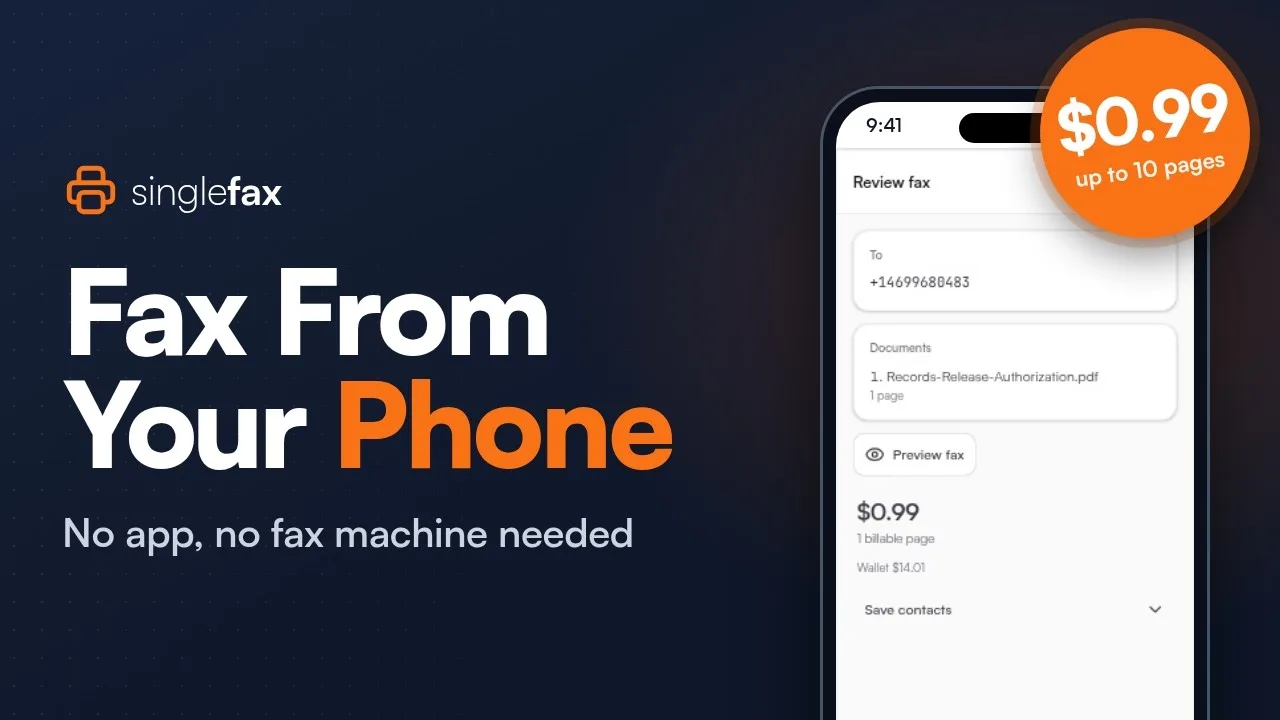
Phone browser walkthrough · 46 seconds
Watch on YouTube1. Scan the document in Notes or Files
In Notes, create or open a note. Tap the Attachment button, then Scan Documents. Older iOS releases may show a camera control instead. Apple's current scan guide also describes a Scan command in the note's More menu.
Capture each page with all corners visible. In manual capture, adjust the corners and use Keep Scan. Add the remaining pages, then tap Done. Export or save the completed scan to Files so it is easy to select in Safari.
In Files, use More → Scan Documents, capture the pages, finish with Done, choose a location and tap Save. This is convenient when you want a PDF directly in a folder, rather than inside a note.
Open the saved PDF before continuing. Check that the last page is included, pages face the same direction, text is readable and signatures are not cropped. You can also use an existing PDF or Word document without scanning it again.
2. Open the send page and upload
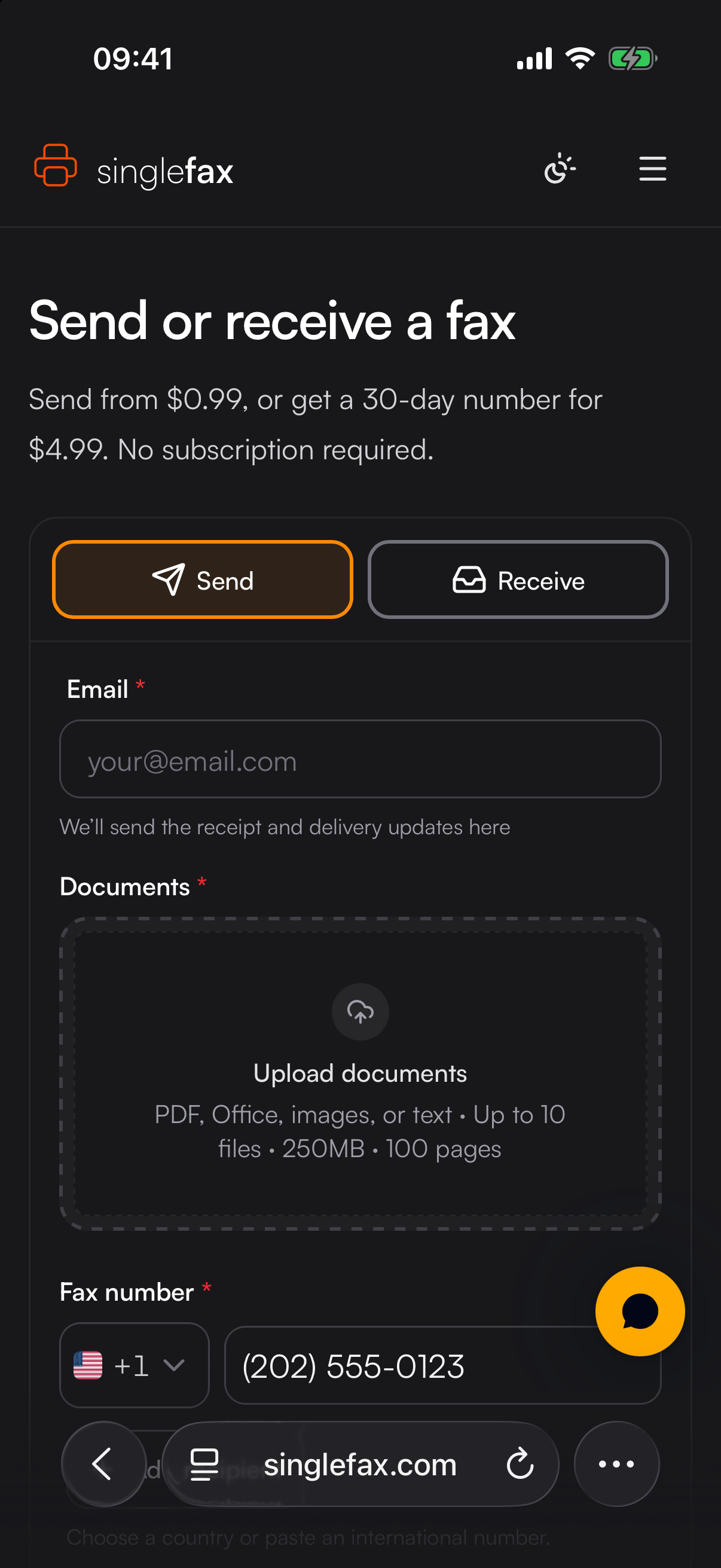
Open the SingleFax send page in Safari and choose Send if needed. Use Upload documents to select the file from Files or a supported image from your photo library.
HEIC photos are supported, but a combined PDF is easier to inspect for a multi-page packet. Wait while the documents upload and convert. A cloud sharing URL or screenshot of a document thumbnail is not the full document.
If a file lives in iCloud Drive, make sure it is available to open on the phone. A weak connection can delay downloading a cloud-only file before uploading it. Use a stable connection and keep the page open while preparation finishes.
3. Enter the number and result email
Enter the verified recipient fax number. Choose the destination country or paste its international number. For a US destination, enter the ten-digit number with its area code; the country selection identifies the US route.
Do not add an office outside-line prefix or an extension. Those do not identify a separate online fax destination. For an international number, use the country code and the recipient's published international format, rather than guessing which local leading digits to retain.
Enter the email address where you will receive the final result. Check it for typing errors. It is useful to have that mailbox open on the same phone, especially when the fax is time-sensitive.
4. Add a cover only when useful
Use a brief cover for a recipient department, callback details and a reference. Keep sensitive identifiers out of the cover when they are not needed. Our free cover sheet generator also provides downloadable templates.
SingleFax excludes a cover generated by its web composer from billed document pages. A cover already merged into your uploaded PDF counts as part of that document. Avoid adding a second cover when the packet already contains one.
For paper submissions, count the actual transmitted pages according to the recipient's convention. If its cover asks for pages including the cover, include it in that count even when it is excluded from a provider's billing calculation.
5. Review the quote, then pay and send
Check the destination, converted pages and cover before checkout. Sending starts at $0.99 for up to ten document pages, with additional document pages about $0.08 each and $0 on failed delivery. Review the final quote for longer packets.
Complete checkout to begin transmission. Keep enough time for a busy line or recipient problem rather than relying on a fixed delivery deadline. A pending card authorization may remain visible until your bank releases it after a failed eligible fax.
6. Save the delivery confirmation
Wait for the final result email. A payment receipt or an upload screen is not the delivery confirmation. Keep the successful transmission record with the document you sent.
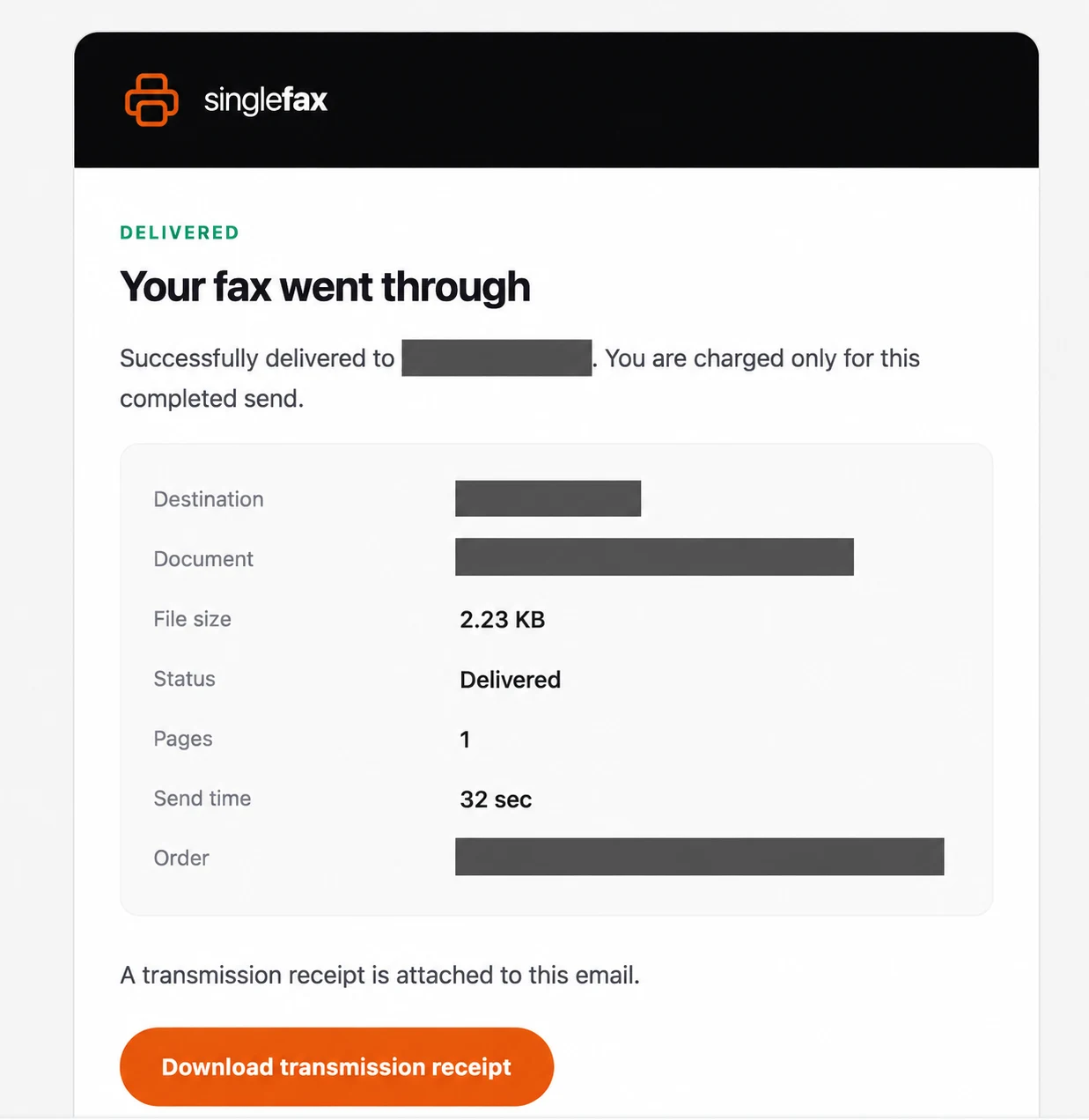
If the recipient is processing an application, follow up using its stated procedure. Successful transmission does not mean approval, that the packet was complete, or that the assigned person has read it. For example, an IRS fax result and an IRS acceptance notice are different records.
Method 2: fax from Mail or Gmail
Compose a new message to send@fax.delivery. Put the recipient's fax number with country code in Subject and attach the actual PDF, Word file or supported photos. Keep the email within ten files and ten MB, leaving room for message overhead.
Send the email and read the gateway reply. Review its destination quote and complete the payment link; sending the email alone does not start the paid fax. Keep the final transmission result when it arrives.
On iPhone, use the mail app's attachment control to insert the saved document. Do not use Mail Drop or a Drive sharing link as a substitute for the actual attachment. A link that another person can open is not necessarily a file the gateway can convert.
Read email-to-fax instructions or the Gmail guide for the full workflow. If attaching several files feels awkward on a small screen, Safari upload gives you another way to review the packet.
Method 3: use the WhatsApp gateway
For ordinary documents, send the file or photo and destination number to +1 (628) 234-2010 through WhatsApp. SingleFax replies with a quote and payment link, then provides delivery updates. Review the number and quote before paying.
Use the WhatsApp-to-fax page for supported formats and limits. Include every page as a document or clear image; a message describing the attachment is not the missing page itself. Keep the final transmission result separately from the chat message.
WhatsApp is not SingleFax's HIPAA sending workflow. Use the HIPAA Secure web route for PHI handled by covered entities or business associates.
Scan quality: make the printed fax readable
Fax converts a page to a constrained image format. A photo that looks attractive on a bright color display can lose faint handwriting or small text when transmitted. Prefer a document scan and inspect it at a comfortable reading size.
| Do | Avoid |
|---|---|
| Use even light on a flat page | Shadows over text or a signature |
| Keep all four page corners | Cropping dates, footers or form fields |
| Use dark text on a light background | Faint pencil, colored highlights or decorative fills |
| Preview a black-and-white or grayscale scan | Assuming every color remains distinguishable |
| Combine related pages in order | Sending unexplained separate pieces |
| Inspect the exported PDF | Relying only on the camera preview |
If you need to sign digitally, check whether the recipient accepts that signature method. Apple documents adding signatures through Markup, but the recipient's filing rules determine whether a particular signature is acceptable.
Receive a fax on your iPhone or iPad
Get a free US fax number for 24 hours, with no card required, and give it to the sender. Incoming faxes arrive as PDFs in your email and can open on iPhone or iPad. The sending machine does not need to know which device you use.
Choose a $4.99 30-day number when a reply may take longer. A $97 lifetime number includes starter credit rather than unlimited traffic; monthly plans suit continuing use. Keep the number active for as long as the sender has it on file.
A free receiving number does not include free outbound faxing or automatically support every regulated workflow. Read the receiving product's limits and choose the appropriate account for sensitive documents.
Free receiving requires a verified email, with one active free number at a time, up to three claims per rolling 30 days and 25 free inbound pages across those claims. Extra faxes may be held for payment to view. The free tier is not HIPAA; the $4.99 30-day product includes its first received fax, with additional receiving charged under its terms.
Medical records and tax documents
For PHI handled by a covered entity or business associate, use HIPAA Secure fax in Safari, from $6.50, with its electronic BAA and applicable safeguards. Regular email and WhatsApp gateways are separate products. A cover-sheet disclaimer alone does not make a transmission compliant.
For IRS forms, start with the relevant routing guide: Form 2848, Form 2553 or SS-4. Confirm the packet and number before sending; a department's voice line is not its fax line.
App Store apps versus browser faxing
An app can be convenient for a regular inbox, scanning and a continuing account. Compare its actual sending allowance, receiving number and renewal terms. A free download can still require credits or a weekly, monthly or annual subscription to send.
For a single ordinary fax, the browser method avoids installing an app or managing a trial. It does not promise unlimited free sending. See fax apps compared for the separate app choices and one-time services for occasional use.
Troubleshooting
| Problem | Next step |
|---|---|
| Scan is blurry | Rescan with even light; inspect text and signatures before uploading |
| File is missing in the picker | Save the complete file to Files and confirm it opens there |
| Upload or conversion stalls | Check the connection, file format and any password protection |
| Number is rejected | Verify country, area code and direct fax line; remove extensions |
| Busy or no answer | Confirm the recipient's line is available, then follow the result instructions |
| No result email | Check the entered address and Spam; distinguish a receipt from the final result |
Open the send page when the complete packet is ready. For other devices and a general checklist, use how to send a fax.