Windows Fax and Scan: How to Use It and When You Can't
$0.99 covers up to 10 pages, pay only if delivered.
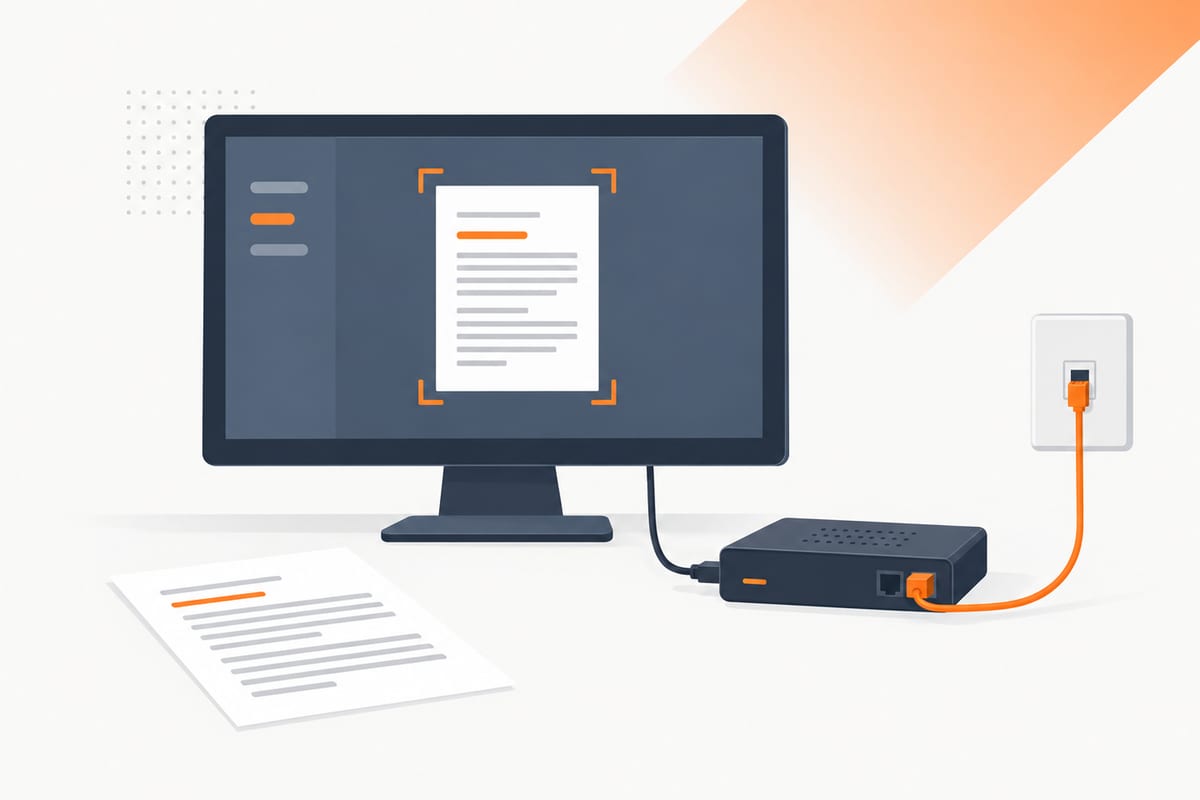
For browser, email and modem options together, see how to fax from a computer.
Fax from Windows without a modem. Sending starts at $0.99 for up to ten document pages, with $0 if delivery fails. Windows availability and installation guidance were checked against Microsoft documentation on 8 October 2026.
What is Windows Fax and Scan?
Windows Fax and Scan combines two different tasks: scanning paper into a computer and transmitting documents through fax equipment. The fax part needs a fax connection. The scan part needs a supported scanner. Installing the program does not supply either device.
It is also different from the Windows Scan app, a scanner manufacturer's software or a multifunction printer's front-panel fax controls. These products can overlap in document preparation, but they are not interchangeable routes for sending a fax.
Choose the route according to the equipment you actually have. If you already maintain a compatible fax modem, telephone line and Windows installation, the legacy client can be useful. If you have only a laptop and internet connection, an online service supplies the telephone fax connection.
| Route | Sends a fax? | Equipment or service required |
|---|---|---|
| Windows Fax and Scan, local modem | Yes, with a working fax setup | Supported PC, fax modem and compatible line |
| Windows Fax and Scan, office server | Through the configured server | Server access and your administrator's setup |
| Windows Scan | Scans a file; does not itself fax it | Compatible scanner |
| Fax-enabled multifunction printer | Through the printer's fax function | Fax-capable model and supported line/service |
| Browser or email fax | Through an online provider | Internet connection and the provider's sending route |
Requirements: check these before installing
For a local fax setup, confirm that your PC supports the Windows component, the modem has a compatible driver, and the telephone connection supports the modem's fax function. A USB fax modem needs both its USB computer connection and its telephone line connection.
A Wi-Fi adapter, cable modem or Ethernet socket does not become a fax modem because it provides internet access. Likewise, a printer with scanning and Wi-Fi but no fax capability is not a substitute for fax equipment.
If your office uses a Windows fax server, ask the administrator for the supported connection and permissions. Do not enter an internet fax provider's email address where Windows expects a fax server. The online provider and an office Windows server are different systems.
Have the recipient's direct fax number and the complete document ready. A switchboard extension generally does not identify the direct fax destination. Verify the number from the recipient's official instructions before any transmission.
Is it available on your Windows 11 or Windows 10 computer?
Microsoft's Features on Demand list identifies Print Fax Scan and its capability name, Print.Fax.Scan~~~~0.0.1.0. It specifically says Windows Fax and Scan is not preinstalled after Windows 11 version 22H2.
Microsoft's current Arm PC FAQ says Windows Fax and Scan is unavailable on Windows 11 Arm-based PCs. That includes an important class of modern laptops; installing another x86 app through emulation does not establish support for this component or modem driver.
First search Start for Windows Fax and Scan. If it appears, open it and check whether a fax account is configured. If it does not appear, determine the computer's system type and inspect the optional features available for that installation. An office policy can also restrict feature installation.
How to install the optional feature
On a compatible PC, follow Microsoft's optional-feature instructions:
- Open Settings → System → Optional features. Some older releases place this under Apps.
- Choose View features beside Add an optional feature.
- Find Windows Fax and Scan, select it and choose Next.
- Review the selection and use the displayed Add control. Some releases label the final action differently.
- Let Windows download the content, follow any restart request, then search Start again.
Do not remove an installed component merely because it appears in the installed-features list. A Remove button means it is already present. If the feature is unavailable, check platform compatibility and organization policy rather than repeatedly downloading unrelated “fax driver” packages.
For administrators, Microsoft documents capability installation with DISM. In an elevated Command Prompt on a compatible system, the capability can be added with:
DISM /Online /Add-Capability /CapabilityName:Print.Fax.Scan~~~~0.0.1.0
This changes the installed Windows components. Follow your organization's administration policy and use the Windows content source configured for that system. A download or source error does not prove that the fax modem is defective. Microsoft explains optional-content acquisition separately.
Set up a fax account
Windows Fax and Scan needs a fax account that identifies its modem or server. Microsoft's archived Fax Accounts guide documents the traditional client sequence Tools → Fax Accounts → Add, followed by the modem or server choice. The guide concerns older Windows releases; follow the controls available in your installed client and your modem's current instructions.
For a local connection, select the fax-modem option, identify the supported modem and configure how calls should be received. For an office connection, use the server details and permissions supplied by the administrator. A cloud fax subscription does not automatically create that office server connection.
Check the modem manufacturer's Windows support before buying hardware. A device's advertised USB support can refer to older operating systems. Confirm the telephone connection requirements too; the physical socket and supported fax behavior matter, not just the shape of the plug.
Send a fax with the configured client
Prepare a clear, complete document and inspect the file before opening the fax composer. In the traditional client, use New Fax, enter the destination and add the document. If your installed release first opens the setup wizard, finish the supported account configuration before proceeding.
Use the dialing rules for that telephone line. A local, long-distance or international call may need different prefixes depending on your country and office system. An outside-line prefix such as 9 belongs to the office telephone setup; it is not automatically needed by every fax machine or online service.
Review the recipient and all pages, then use the sending control. Check the client queue and final transmission status. A document in an Outbox can still be waiting or failing; preserve the successful result or report rather than assuming the initial send action means delivery.
See how to send a fax for packet preparation, number formats and confirmation. A successful transmission is different from the recipient accepting the contents of an application.
Receive a fax in Windows Fax and Scan
The receiving modem and telephone number must be available when the sender calls. Configure the receiving behavior for your actual account and line. A shared voice/fax line needs settings appropriate to that arrangement; answering every voice call as fax can interfere with normal telephone use.
A local computer that is shut down or a modem that is disconnected cannot act as the active receiving setup. If replies can arrive outside office hours, plan equipment availability rather than assuming that an installed application supplies an always-on inbox.
For office fax servers, ask the administrator how incoming documents are routed and who can access them. Server delivery and permissions are separate from the local client's settings.
If you prefer receiving while your PC is off, get an online receiving number. The provider receives the call and delivers the PDF to your email. Choose a duration long enough for the sender to respond.
Scan a document without sending a fax
Scanning captures a file; faxing transmits one. For a scanning-only task, Microsoft's scanner guide covers scanner installation and the Windows Scan app. You do not need a fax modem simply to scan.
Connect or configure the scanner according to its manufacturer, confirm Windows detects it and use a supported scanning app. Select the correct source, such as a flatbed or document feeder, and preview the output. A blank scan can come from the wrong source or paper orientation rather than a fax problem.
Save and inspect the complete file before uploading it to a fax service. For multi-page packets, use a supported PDF export or combine the scans in the intended order. If you do not have a scanner, a phone's document scanner is another way to create the file. Our phone guide covers that preparation route.
Common Windows Fax and Scan problems
| Symptom | Check before trying again |
|---|---|
| Program not found | Installed optional features, supported platform and organization policy |
| Feature missing on an Arm PC | Microsoft's platform limitation; choose another route |
| No fax modem detected | Fax-capable hardware, connection and compatible manufacturer driver |
| No dial tone | Telephone-line connection, modem socket and line compatibility |
| Busy or no answer | Recipient's direct fax number and receiving-line availability |
| Scanner unavailable | Scanner driver, network/USB connection and selected source |
| Blank or partial document | Original file, paper orientation, source and page order |
| Feature download fails | Windows content source, connectivity and administrator policy |
Do not confuse a scanning-driver error with a telephone-transmission error. Isolate the stage: can the PC capture or open the document, does the fax connection work, and did the recipient confirm transmission? Fixing one stage does not automatically fix the others.
For a managed work computer, ask the administrator to resolve permissions and approved drivers. Installing unverified utilities from a search advertisement is not a substitute for the device manufacturer's support.
No modem? Fax from Windows in a browser
You can fax from Edge, Chrome or another supported browser through SingleFax. This method supplies the fax connection through the provider; the PC needs an internet connection rather than a telephone line.
- Save the complete signed document as a PDF and inspect it.
- Open the send page and choose Send.
- Select Upload documents and wait for conversion.
- Enter the recipient's verified direct fax number and your result email.
- Review the packet, optional cover, destination quote and terms.
- Complete checkout and save the final fax result.
Sending starts at $0.99 for up to ten document pages, then about $0.08 per additional document page, with $0 on failed delivery. A cover generated by SingleFax's web composer is excluded from billed document pages; a cover already merged into your upload counts within the document.
Use the computer fax guide to compare browser, email, printer and modem routes. The Chrome extension offers another way to start a supported web sending workflow.
Or send from Outlook or Gmail
Email actual documents to send@fax.delivery, with the recipient's fax number and country code in Subject. Keep the email within ten files and ten MB. Read the reply, review the quote and complete its payment link to start transmission.
This email route does not spend account credits automatically. A Gmail or Outlook sent message is not the final fax result, and a cloud sharing link is not the actual attachment. Use the Outlook guide, Gmail guide or email-to-fax page for details.
Receiving and sensitive documents
A free SingleFax US receiving number lasts 24 hours, requires a verified email and includes 25 inbound pages per rolling 30 days across free claims. There is one active free number at a time and up to three claims per rolling 30 days. Extra faxes can be held for payment to view. The free product is not HIPAA.
A $4.99 30-day number provides a longer reply window; read its included-fax and extra-receiving terms. Monthly plans and a $97 lifetime number suit ongoing correspondence. Lifetime includes starter credit rather than unlimited traffic.
Covered entities and business associates sending PHI should use HIPAA Secure fax on the web, from $6.50, with its BAA and applicable safeguards. A local modem, an ordinary email gateway or a confidentiality cover does not by itself establish an organization's HIPAA compliance.
Send from your Windows browser when the final packet is ready, or keep using your existing modem setup when the supported equipment and line meet your needs.
Common questions
Sources
- Microsoft: Available Features on Demand, Windows Fax and Scan
- Microsoft: Add or remove optional Windows features
- Microsoft: Windows Arm-based PCs FAQ
- Microsoft: Install and use a scanner in Windows
- Microsoft: Archived Fax Server and Fax Accounts guide
- Microsoft: Windows Fax components for Office Internet Fax