How to Send a Fax From Outlook
$0.99 covers up to 10 pages, pay only if delivered.
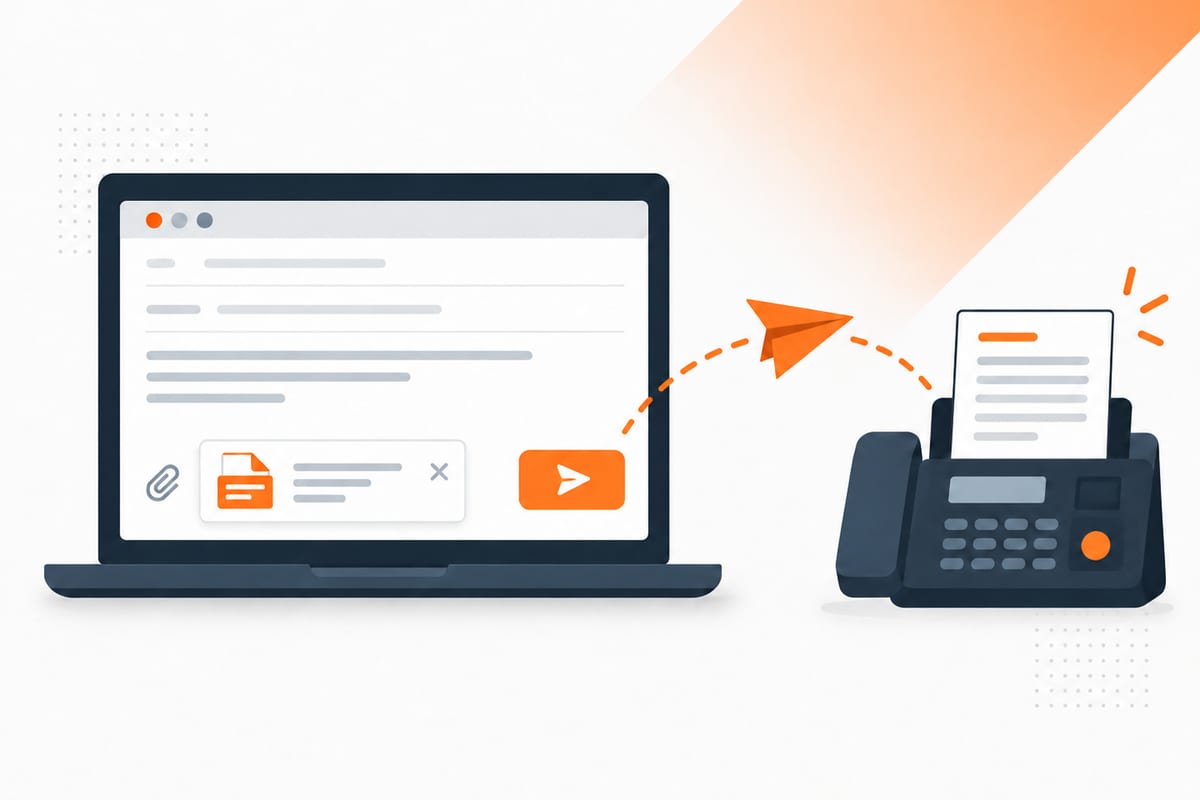
This works with new Outlook, classic Outlook, Outlook on the web, and Outlook mobile. No fax add-in or fax modem is needed. A one-time fax starts at $0.99 for up to 10 document pages, and failed delivery costs $0.
Open the email-to-fax guide or upload in your browser if you prefer to preview the packet there. Compare other methods in how to fax from a computer. Menu instructions below were checked against Microsoft's current support pages on 8 October 2026.
Before you start
Have the complete document, the recipient's direct fax number, and a mailbox that can receive replies. Verify the number from the recipient's current letter or official contact page. Do not guess a fax extension from an ordinary voice telephone number.
The SingleFax email gateway accepts up to ten attachments and ten MB total. Attach the actual document; a OneDrive or SharePoint sharing link does not supply its pages. Export to PDF when you want to preserve page order, signatures, and layout across devices.
Use a country-coded number in the subject, for example +1 202 555 0100. That is a fictional example, not a destination to use. Do not add an office dialing prefix such as 9. For a real IRS form, start from our form-specific number guide and verify its routing rule.
Do not send regulated PHI through the ordinary email gateway. Use the separate HIPAA fax flow and complete its BAA step where required. A shared mailbox, confidentiality notice, or paid send is not a substitute for choosing that product.
Outlook desktop: new Outlook and classic Outlook
New Outlook for Windows
- Choose New mail.
- In To, enter
send@fax.delivery. - In Subject, enter the verified fax number with its country code.
- Choose Attach File and select the document from your computer. If it is a cloud file, attach a copy rather than a sharing link.
- Check that the attachment is the complete, current document, then choose Send.
- Read the gateway reply, review the payment page, and complete checkout. Save the final delivery confirmation after transmission.
Microsoft's attachment guide distinguishes traditional attachments from OneDrive links. A link is helpful for collaborative editing, but fax transmission needs the actual pages. When in doubt, download a PDF first and attach that local file.
Classic Outlook for Windows
Create a new email, then fill To and Subject in the same way. On the message ribbon, use Attach File to select the document. The gateway address and number format do not change between Outlook versions.
Keep the email focused on one fax job. Check all recipients in the To, Cc and Bcc fields before sending; do not accidentally include an unrelated person in the document email. Then use the reply's payment link and keep the result.
Sending the email is only the intake step. A Sent Items entry proves Outlook sent an email, not that a receiving fax machine accepted the document. The fax begins after the gateway's payment step is completed.
Outlook on the web
Open Outlook in your browser and create a new message. Address it to send@fax.delivery, put the fax number in Subject, and use Attach or Attach file followed by Browse this computer to select the local document.
If you select a cloud document, choose Attach as a copy where offered. Microsoft's web collaboration guide shows the distinction between a OneDrive link and an attached copy. The visible label can vary by Outlook version and organization settings.
Inspect the attached filename and size. A shortcut file, web link, or email message saved as an attachment is not the same as the form you intended to fax. Download and open the actual PDF before attaching it when the source is an online portal.
Choose Send, then watch the same mailbox for the gateway reply. Open the payment link privately, verify the destination and quoted total, and complete payment. Preserve the final result separately from the initial intake email.
Outlook mobile on iPhone or Android
Create a message in the Outlook app, enter the gateway address and destination subject, then use the attachment control to choose the saved PDF or scan. Attach a file copy from your device or available storage rather than a cloud sharing link.
For paper documents, scan them before composing the email. An iPhone can save a scan through Notes or Files; Android scanning tools can produce a multi-page PDF. Check corners, orientation and page order before attaching it. See faxing from a phone for those preparation routes.
Mobile email apps can insert a photo into the body instead of attaching it as a file. Confirm that the document appears as an actual attachment. If that is unclear, save a PDF and choose it from the file picker, or use browser upload.
Keep the phone online until the email is sent, then check the reply and payment step. Leaving Outlook does not cancel a fax already started after payment. Use the final status page or confirmation to determine whether it delivered.
Does Outlook have built-in fax?
An ordinary email client addresses internet mailboxes. A fax machine answers a telephone number. An email-to-fax provider bridges those systems by converting the attached document and placing the fax call.
Microsoft still documents an Internet Fax feature in Office, dependent on Windows Fax components available only in certain editions and configurations. That does not establish a universal fax button in every Outlook version. The ordinary gateway method above works without relying on those components.
Microsoft 365, Outlook.com and a business mailbox are email products; none should be treated as an included SingleFax sending allowance. The gateway's payment link shows the fax price separately.
For a Windows PC with a physical modem or fax server, Windows Fax and Scan is a different route. For most users who only need an occasional send, browser or email faxing avoids that equipment setup.
Receive faxes in Outlook
Get an online fax number and set the receiving email to the mailbox you use in Outlook. Give that number to the sender. The received fax arrives as a PDF attachment, which you can save and route according to your organization's rules.
A free 24-hour SingleFax number can suit an immediate reply within its page limits. For a multi-day response, a 30-day number for $4.99 is more practical. Company plans provide an ongoing number and monthly page allowance.
Do not put a disposable number on permanent letterhead. Expiry affects future incoming faxes even though previously received PDFs remain in your records. When switching a continuing number between providers, arrange and confirm the transfer before canceling the old service.
Free receiving requires a verified email, with one active free number at a time, up to three claims per rolling 30 days and 25 free inbound pages across those claims. Extra faxes may be held for payment to view. The free tier is not HIPAA; the $4.99 30-day product includes its first received fax, with additional receiving charged under its terms.
Business use: shared mailboxes
Use a shared mailbox only if you are authorized to send from it and it can receive replies. Someone must be responsible for the intake email, payment link and final fax confirmation. A message left unread in a shared inbox can leave the fax unpaid and unsent.
Confirm that external replies are not blocked or diverted to a quarantine staff cannot access. Follow the organization's rules for payment links, document attachments and record retention. For recurring team work, company plans may provide a more suitable workflow than separate guest sends.
Do not forward payment or status links broadly. Treat them as private transaction information and share only with the people who need to manage the fax. Keep the delivered result with the case or application it supports.
Troubleshooting
| Symptom | What to check |
|---|---|
| No gateway reply | Address spelling, mailbox access, spam and organization filtering |
| Document missing | Attach the file itself; remove cloud-only links |
| Too large | Keep the full attachment set within ten MB and ten files |
| Extra pages | Export to PDF and remove accidental blank pages |
| Still not faxing | Complete the payment link; intake is not delivery |
| Busy or no answer | Verify the direct fax line and inspect the final status |
A confirmation email can be delayed or filtered even when the status page has a result. Keep the private status link, check the final outcome, and avoid repeatedly sending the same packet without understanding whether an earlier attempt delivered.
Frequently asked questions
Can I send from Outlook for Mac?
Yes. The gateway uses a normal email with actual attachments. Use the same address and subject, then follow the reply's payment step. Our Mac fax guide also covers browser upload and PDF preparation.
Can I just email a fax number?
No. A telephone number alone is not an email address. Use a provider's documented gateway format. For SingleFax, the gateway email is in To and the telephone fax number is in Subject.
Is a OneDrive link enough?
No. Attach a copy of the actual file. A fax machine cannot retrieve the private sharing link you pasted into an email.
What proves delivery?
The final fax transmission result, not the Sent Items entry or checkout receipt. Keep the complete packet and result, then follow any recipient-specific acknowledgment requirements.
Send from Outlook through the email gateway, or upload the document now.