How to Fax From a Computer: Browser, Email or Hardware
 Mircea Rilă
$0.99 covers up to 10 pages, pay only if delivered.
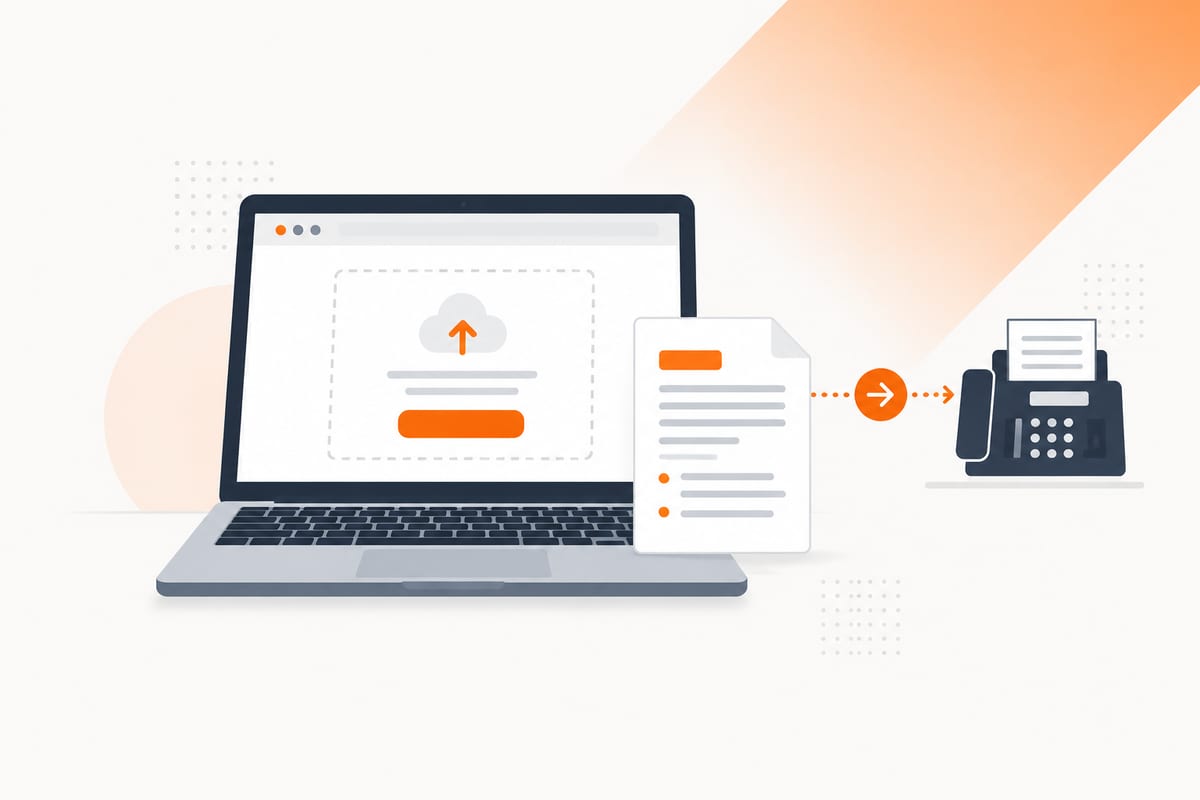
Start with the complete sending guide if you need to choose a method. If your file is ready, send it from your browser. Sending starts at $0.99 for up to ten document pages, $0 if delivery fails. Details below were checked on 8 October 2026.
Every way to fax from a computer, compared
The main distinction is who supplies the fax connection. A browser or email service places the call for you. A local fax utility needs hardware or access to an organization’s fax server; merely installing software does not create a working fax line.
| Method | What you need | Phone line at your computer? | Suitable situation |
|---|---|---|---|
| Browser upload | Internet, saved file and fax provider | No | Most one-time sends |
| Email-to-fax | Mailbox, attachments and gateway | No | Document already in Gmail or Outlook |
| Chrome extension | Supported Chrome browser and provider | No | Attaching a public PDF or local file to the web sender |
| Windows Fax and Scan | Supported Windows PC, fax modem and line, or fax server | Hardware/server setup required | An existing office fax installation |
| Fax-capable multifunction printer | Compatible model and configured fax connection | Usually a line or supported fax service | Paper documents at a desk |
A normal voice phone number, Wi-Fi connection or printer scanner does not automatically supply the traditional fax connection. Check which category you actually have before buying a modem, downloading software or troubleshooting a printer.
For occasional use, begin with a browser. For an existing managed office fax system, your IT team can explain its server and dialing rules. If your main problem is receiving rather than sending, skip ahead to the receiving section; that requires a number others can call.
Method 1: fax from your browser
Computer browser walkthrough · 53 seconds
Watch with chapters and transcript
Watch on YouTubeThis is the same basic workflow on a desktop or laptop. It does not require a SingleFax receiving number, a recurring plan or a guest account. Use the dedicated HIPAA workflow instead if your organization needs its BAA and safeguards.
1. Prepare the file
Open the document and check that it is complete and signed where required. A PDF preserves the page layout well. Supported Word files and images can also be uploaded, but review their prepared pages before sending. If you combine several files, decide their order before upload.
Look for blank pages, duplicated scans and text outside the printable area. A signature cut off at the edge can make an otherwise readable form unusable. Remove an opening password only when you are authorized to do so and the sending service needs an accessible file.
2. Open SingleFax
Go to Send in your browser. You do not need to connect the laptop to a landline. Keep the tab available while uploading and completing checkout, particularly on a work computer that sleeps or signs out automatically.
3. Upload and inspect the preview
Choose your files and inspect the prepared preview. Check the page count against the document you opened locally. For a spreadsheet or slide deck, check that conversion did not include hidden worksheets, oversized print areas or an unexpected number of slides.
If the preview is wrong, fix the source and upload a corrected file before paying. Do not rely on the recipient to reconstruct clipped tables or reorder attachments. Keep the final version distinct from an earlier draft so you can match it to the transmission result.
4. Enter the number and cover
Select the destination country and enter the recipient's verified direct fax number. Use a current official page or letter; a switchboard number or voice extension may not accept a fax. The number guide explains country codes and display formats.
Enter the email for the final result. Add an optional cover identifying the person or department and a short purpose. If the recipient has a prescribed cover, use that. Our cover tool supplies free PDF and Word downloads as well as a fillable generator.
5. Review the price and complete checkout
Review the document pages, recipient and displayed payment terms together. SingleFax starts at $0.99 for up to ten document pages, with about $0.08 per extra document page and $0 on failed delivery.
A cover created in SingleFax's composer is excluded from billed document pages. An uploaded cover or one merged into your PDF is part of the document and counts. Complete checkout only after the packet and destination are correct.
6. Keep the final transmission confirmation
Wait for the final fax result and save the successful confirmation alongside the sent file. Match the destination and reported pages. The payment receipt and upload acknowledgement do not establish successful transmission.
Delivery to a fax endpoint is separate from the recipient reading or accepting the document. If an agency or employer has a follow-up procedure, follow that procedure after transmission. Do not submit duplicate packets merely because you have not yet received an application decision.
Method 2: email-to-fax from Gmail or Outlook
Email-to-fax can be convenient when the document is already in your mailbox. A gateway converts actual attachments into fax pages. Your ordinary email program supplies the message, while the provider supplies the fax call.
For SingleFax, compose to send@fax.delivery, put the fax number in the subject and attach the actual document files. The gateway accepts up to ten attachments and 10 MB total. Those limits are smaller than some mail providers' general attachment limits, so check the whole packet rather than assuming a message that Gmail accepts will also fit the gateway.
Use a file attachment or attach a copy when Outlook offers a cloud-sharing choice. A Drive, OneDrive or Dropbox URL does not send the actual bytes the gateway needs. If a message contains several unrelated files, download and reattach only the pages intended for this recipient.
Open SingleFax's reply, review the converted packet and follow the checkout link. The email workflow does not automatically spend prepaid credits and send immediately. You still complete its review and payment step, then wait for the final fax result.
Follow the Gmail guide or Outlook guide for current attachment controls. The email-to-fax page covers receiving and gateway questions. Organizations handling PHI should choose the HIPAA web workflow when required rather than treating ordinary email as the same service.
Method 3: Windows Fax and Scan
Windows Fax and Scan is a Windows utility for a traditional fax setup. It is not a subscription-free internet fax provider. Sending needs a compatible fax modem and a working line, or access to a configured fax server.
Microsoft lists Print.Fax.Scan~~~~0.0.1.0 as an optional capability and says Windows Fax and Scan is not preinstalled after Windows 11 version 22H2. Microsoft also states that it is unavailable on Windows 11 Arm-based PCs. Installing an optional feature on a compatible system still does not provide the telephone connection or modem.
For a modem setup, confirm the hardware's current Windows compatibility, connect it according to its instructions and configure the fax account. For a fax server, ask your administrator for the server and access requirements. Office dialing prefixes can differ from the international number format used by an online service.
If you only have a laptop and Wi-Fi, the browser method usually involves fewer components. If Windows cannot find a modem, changing the document format will not solve the missing hardware. Diagnose the connection and hardware separately from the scanned file.
Method 4: an all-in-one printer with fax
An all-in-one printer can combine printing, scanning and sometimes faxing, but the word “all-in-one” does not prove a particular model supports fax. Check its specifications, ports and manufacturer instructions. A model with only printing and scanning can prepare a PDF that you send through a browser instead.
For a fax-capable model, configure its supported line or fax service. The computer's network connection to the printer is not necessarily the same connection the printer uses to transmit fax calls. Confirm the actual fax setup before sending sensitive or deadline-bound material.
Load paper according to the model's feeder or flatbed instructions, enter the verified fax number and start transmission. If you use a computer-side fax dialog, check that the selected device is the configured fax-capable printer. Keep the printer's final report and inspect the number and page count.
Manufacturer instructions determine whether pages face up or down and how dialing prefixes are entered. Do not apply another brand's controls to your machine. A machine reporting “no dial tone” needs connection troubleshooting, while a skewed scan needs document or feeder troubleshooting.
Fax from a Mac or MacBook
A Mac can use Safari, Chrome or an email gateway without a fax modem. Save the document, upload it to the sender and complete the same review, destination and checkout workflow. See fax from a Mac for the detailed browser, Mail and scanning methods.
To create a predictable PDF, Apple's current instructions use File → Print → PDF → Save as PDF. Open the saved file and check its pages before uploading. The PDF menu creates a document; it does not itself send a fax.
Apple also documents faxing with compatible multifunction printers. That depends on the supported printer and configured connection. It is different from a Mac having a universal built-in internet fax service. If you do not already have that setup, use the browser route.
Fax from a Chromebook
A Chromebook can upload a local PDF or supported file in its browser. Download a cloud document as an actual file first if your chosen workflow needs an attachment. Check that you selected the final export rather than a shortcut or sharing URL.
SingleFax's Chrome extension can attach an accessible public PDF already open in the tab or a selected local file. It then hands the document to the website, where you enter the destination, add any cover or extra files, review the quote and complete checkout.
The extension cannot grab a document embedded in Gmail, Drive or another private viewer simply because it is visible in a tab. Download the document and choose the file instead. Standard extension sending is separate from HIPAA Secure Mode, which stays on the website.
Install permissions and browser policies can differ on a school or employer-managed Chromebook. If an extension is unavailable, the normal web sender remains an alternative on a supported browser. You do not need to install an extension for a one-time browser upload.
Fax a PDF or Word file from your computer
PDF is useful when you want a fixed layout that you can inspect before transmission. Save a clean copy with all pages visible and signatures included. Open it after export to catch missing fonts, form fields that did not render or an unwanted password.
For Word, complete the document and check its print layout. A downloaded template is only a starting point: remove unused prompts, replace example details and verify the recipient's required fields. Our Word cover templates are editable if you need a separate routing page.
You can upload a supported Word file, or export it to PDF first for easier page checking. In either case, inspect the sender's converted preview. Fax transmission is image-based, so the recipient does not receive an editable Word document or interactive PDF controls through a conventional fax machine.
The PDF sending guide covers a document already in that format. For multiple attachments, check their order and total pages. An additional attachment is not free merely because it was added to the same checkout.
Scan and fax without a scanner
You can use a phone to create the PDF, then move it to the computer or upload from the phone directly. Capture the page on a flat, well-lit surface, correct its corners and check the signature area. Add every page before saving the packet.
On a compatible Mac and iPhone or iPad, Apple's Continuity Camera can insert a scan into supported Mac apps. Current Finder instructions use Scan Documents under Insert from device. The devices need the documented compatibility, account and wireless settings; this is a scanning feature rather than fax transmission.
If you email the scan to yourself, download the actual attachment before uploading it. If you transfer through cloud storage, make sure the file has finished syncing and opens locally. A blurry scan will not become clear merely because you send it from a larger computer.
Use the iPhone guide, Android guide or phone hub. For a single packet, staying on the phone can avoid an extra transfer step.
Cost: one fax, regular faxing and receiving
Compare the final packet quote with a recurring plan and any hardware costs. Starting prices alone do not tell you whether a subscription, extra pages or a receiving number are included.
| Need | SingleFax option | Key limit or distinction |
|---|---|---|
| One-time send | $0.99 for up to ten document pages | About $0.08 per extra page; $0 on failed delivery |
| Other destination | Quote before checkout | Destination-specific charge-on-dial terms |
| Short receiving window | Free US number for 24 hours | Verified email and free usage caps |
| Receive for 30 days | $4.99 | First received fax included; extra receiving paid |
| Regular sending and receiving | Standard $7.90/month or $79/year | 300 pooled monthly pages and plan terms |
| Continuing number without a monthly number fee | Lifetime Basic $97 | Starter credit; additional fax traffic paid |
The free number allows one active claim, up to three claims in a rolling 30 days and 25 free inbound pages across those claims. Extra faxes are held for paid viewing; it is not the HIPAA workflow. See free receiving, lifetime numbers and pricing for the complete terms.
For a physical modem or printer, include the line, calling charges, hardware and maintenance in your comparison. An already configured office setup can make sense; buying a line solely for one document is a different decision. Do not treat the price of an app installation as the cost of its fax transmissions.
Troubleshooting computer faxing
The file will not upload: confirm it is an actual supported document and within the sender's displayed limits. Download a cloud file instead of selecting a link or shortcut. Check that it opens locally and is not password-locked.
The preview has too many pages: inspect the source's print area, blank pages and page breaks. Export a corrected PDF and check it before uploading again. Keep only the attachments needed for this recipient.
The number is rejected or answers as voice: verify the country, area code and direct fax line. Do not copy an office outside-line prefix into an online destination field. Ask for a direct fax number if you have only a telephone extension.
The email gateway replies but nothing sends: open its review and checkout link. An acknowledgement does not mean payment is complete or the fax has transmitted. Check spam and the address used to send the message.
The machine or Windows utility has no connection: check the modem, configured line or fax server. Internet access alone does not satisfy those hardware methods. Use the model's or administrator's diagnostics rather than repeatedly resubmitting the same document.
The fax is still processing: wait for the final result before ordering another attempt. Busy lines and retries can extend completion time. If part of the packet arrived, ask the recipient whether to resend everything or only the missing pages.
Send your document from the browser, or use how to fax without a machine to compare the phone, email and in-person alternatives.
Frequently asked questions
Sources
- SingleFax: Sending prices and number plans
- SingleFax: Chrome extension capabilities
- Microsoft: Windows Fax and Scan optional capability
- Microsoft: Windows 11 on Arm restrictions
- Apple: Save a document as a PDF
- Apple: Send a fax with a compatible multifunction printer
- Apple: Continuity Camera scans
- Microsoft: Attach files or copies in Outlook
- Google: Gmail attachments