How to Send a Fax from Google Drive/Docs
 Mircea Rilă
Send a fax from Google Drive, Docs, Sheets, or Slides with no add-on. Download a PDF, upload it in your browser, and send from $0.99. No account required.
For a routing page, use the Word cover template, Google Docs cover workflow and cover-field instructions. Compare the Dropbox Fax prices and limits if you prefer an integrated cloud account.
If you attach the exported file to email, follow the Gmail fax workflow or Outlook fax workflow. Both need the actual file and recipient number, followed by the gateway's review and checkout steps.
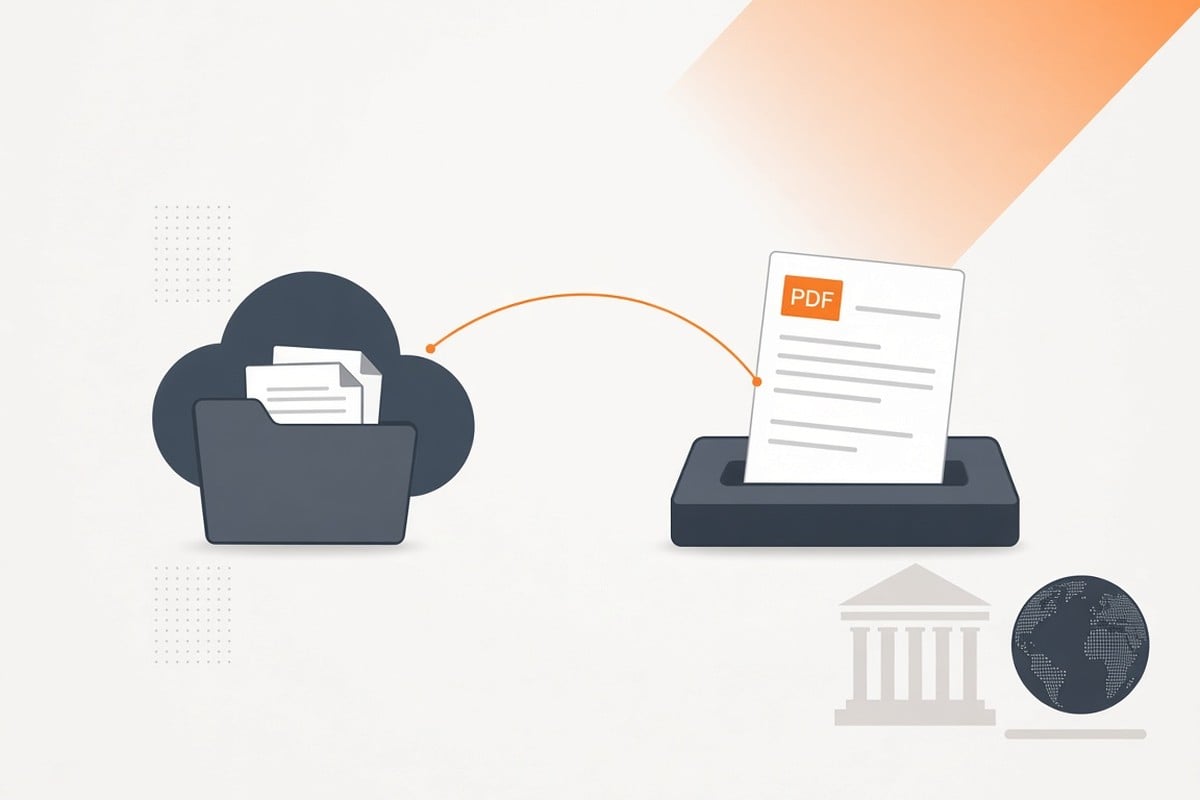
Drive → Fax in 4 Steps
- In Google Docs (or Slides/Sheets), click File → Download → PDF
- Go to send a single fax
- Enter the destination fax number and attach the PDF
- Add a short cover sheet and send
Tips
- Combine multiple files into one PDF for multi‑page faxes
- Use clear headings and readable fonts for fax output
Related reading
Why Exporting to PDF Beats Printing/Scanning
PDF preserves layout and fonts, so your letter, spreadsheet, or slide deck looks the way you intended after fax compression. It also avoids camera glare, shadows, and skew that can make photos hard to read.
Prepare Docs, Sheets, and Slides for Fax Clarity
Docs (Letters, Forms)
- Use 11–12pt fonts with strong contrast
- Keep margins and spacing comfortable
- Add page numbers when sending multiple pages
Sheets (Spreadsheets)
- Increase font size and column widths
- Use borders and bold headers for legibility
- Avoid dense, small text blocks; split across pages if needed
Slides (Presentations)
- Prefer dark text on white background
- Increase text size and reduce crowded layouts
- Remove background images that reduce contrast
Export to PDF (Google Drive)
Google Docs: File → Download → PDF
Google Sheets: File → Download → PDF (adjust scale to fit content)
Google Slides: File → Download → PDF
Check the PDF after export to ensure pagination and fonts look right.
Add a Simple Cover Sheet
Include recipient, your contact details, total pages, and a short purpose. Keep it minimal, no sensitive data on the cover. Generate one in the fax cover sheet tool or copy from Fax Cover Sheet Templates.
Send in the Browser (No Add‑Ons Needed)
Open send a single fax, attach the PDF, enter the destination number, add your cover, send, and save the confirmation.
Multi‑File Packets: Combine Before Sending
- Combine related Docs, Sheets, and Slides exports into a single PDF using Drive’s PDF merge tools or your device’s PDF utility
- Ensure the order matches your intended sequence (cover first)
Quality Checklist
- Text readable at arm’s length
- High contrast (black on white preferred)
- Clear headers; table lines visible
- Logical page order with page numbers
Troubleshooting
- Tiny text: Re‑export at larger font sizes or scale appropriately in Sheets
- Missing fonts: Use standard Google fonts or embed fonts by exporting from Docs
- Large files: Split into smaller PDFs (10–20 pages) and send in parts
- Destination issues: Re‑try during recipient’s business hours
Security and Privacy
- Use devices/accounts with MFA enabled
- Avoid public Wi‑Fi when uploading; use cellular or VPN
- Clear local downloads if using a shared device
- Keep delivery confirmations for your records
If you handle PHI or confidential data, review: Fax Security 101 and Online Faxing Security Best Practices.