How to Fax Without a Landline in 2026 (No Phone Line)
 Mircea Rilă
Fax without a landline or fax machine. Upload documents from any browser, pay from $0.99, or receive replies on an optional 30-day number.
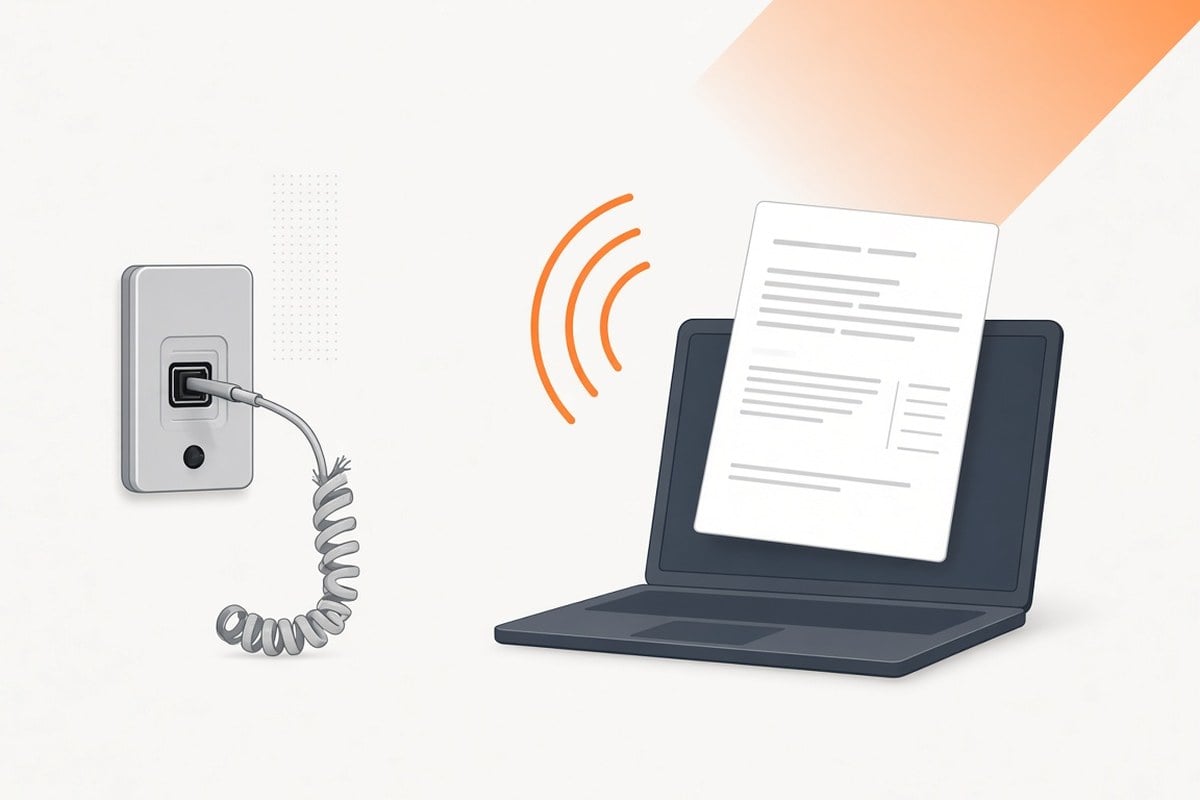
Compare browser, phone, email and receiving methods in how to fax without a machine.
The fax transmission explanation shows which side places the call. For a device-free approach, use the guide to faxing without a machine. A mobile app is optional; the fax app comparison separates native apps, browser access and recurring billing.
To check existing equipment before switching, follow the fax machine test guide with a harmless page and test both directions.
Faxing without a landline
A landline fax needs a phone jack and a machine that answers. An online fax skips both. You upload a file in a browser, and the carrier places the call to the recipient's fax number. Your side never uses a copper phone line. SingleFax starts at $0.99 for up to 10 pages.
Why landline-free faxing makes sense in 2026
Carriers are retiring copper phone lines, and many offices do not want a phone jack or a fax machine. Sending from a browser avoids that hardware. You still need the recipient's fax number. Delivery depends on their line.
Internet Fax: The Simple Way
With SingleFax, you just upload a file, type the destination fax number, and hit send. We handle routing and delivery confirmations behind the scenes, no analog line or ATA box required.
Quick Steps
- Prepare a clear PDF (or take a straight‑on photo in good lighting)
- Go to send a single fax
- Enter the recipient fax number, attach your file/photo, add a short cover sheet, and send
- Save the delivery confirmation for your records
Make Your Fax Crystal Clear
Most “fuzzy fax” issues come from the source document. Fixes:
- Prefer PDF output from your editor (Docs/Word/Sheets/Slides → PDF)
- If photographing, use bright light, avoid shadows, and crop edges
- Boost contrast and avoid tiny fonts; aim for 11–12pt text minimum
- Use bold, dark ink for signatures; avoid gray pens and pencil
Mobile‑First: Great Results from iPhone or Android
You can send directly from your phone, no app install needed. If you need to capture paper, use your phone camera or a scanning app to combine multiple pages into a single PDF. Then upload in the browser and send.
Phone browser walkthrough · 46 seconds
Watch with chapters and transcript
Watch on YouTubeHelpful guides:
Receiving Without a Line
If someone needs to fax you once, use receive a single fax. If you need a permanent inbound identity (for clients, insurers, or agencies), get a lifetime fax number. It stays the same forever, no hardware to maintain.
Use Cases (When No‑Line Faxing Shines)
Legal & HR
Send signed pages, offer letters, and time‑sensitive notices, even if the court or employer prefers fax. Keep the confirmation for your records. See: Faxing for Legal Documents.
Healthcare
Transmit referrals and prior authorizations with minimal PHI on the cover; confirm with the receiving office. See: Healthcare Faxing in 2026.
Government Forms
For EIN applications (SS‑4), POA (2848), and transcript requests (4506‑T), many workflows still use fax. See: Government Forms in 2026.
International → US
Skip dialing complexity. Upload your document and send to a US number from anywhere. See: International → US Faxing Guide.
Security & Compliance (Plain‑English Checklist)
- Secure cloud fax with TLS encryption in transit and AES encryption at rest
- Multi‑factor authentication (MFA)
- Access controls for any team inboxes
- Delivery confirmations and retry logic
- Audit logs for regulated workflows (HIPAA, legal)
For details, review: Fax Security 101 and Online Faxing Security Best Practices.
Troubleshooting: If a Fax Doesn’t Go Through
- Double‑check the destination number (area code and length)
- Resend during recipient business hours (reduces busy signals)
- Re‑export the PDF or re‑scan at higher contrast
- Split very large files into 10–20 page chunks
Quick Start Checklist for Teams
- Create a simple cover sheet with contact info and page count (fax cover sheet generator or Cover Sheet Templates)
- Standardize on PDF outputs; avoid photos unless necessary
- Use a shared email alias for confirmations (e.g., intake@yourorg.com)
- Train staff: how to send, when to retry, where to file confirmations
Get It Done
- Send now: send a single fax
- Receive now: receive a single fax
- Always‑on inbound: lifetime fax number